Creating Landing Zone Ingress / Egress Routes

Tools
- LZ Route Editor: https://spaces.utm.prod.droneup.cloud/admin/locations
- Altitude Conversions: https://docs.utm.prod.droneup.cloud/doc/maps/altitude/post-api-transform
Access permissions to the LZ Route Editor are hardcoded. You will need to ask Engineering to push a code change to give you access. Spaces access alone is not enough.
Example Requested Ingress/Egress Route
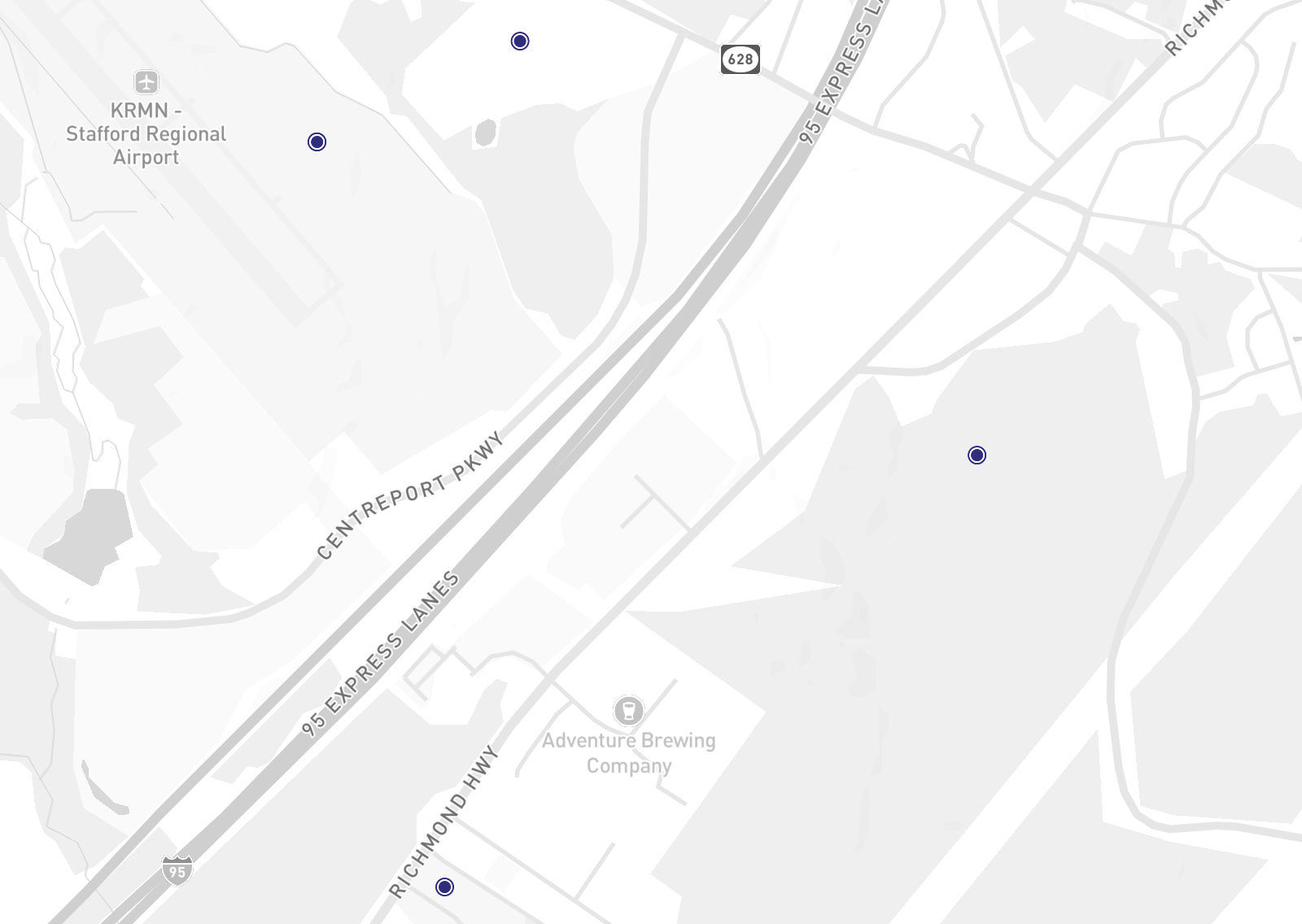
For the following LZ: VA008 Gate 2 UUID:
67da16a9-41dd-4b13-acd4-7da2b0cf5a7fThis is the route. The takeoff/landing point is the first point (0m). The drone climbs to 45.72m (150ft) and then traverses along the path.
{
  "type": "FeatureCollection",
  "features": [
    {
      "type": "Feature",
      "properties": { "name": "takeoff" },
      "geometry": {
        "coordinates": [-77.44943779776644, 38.39678861413941, 0],
        "type": "Point"
      },
      "id": 0
    },
    {
      "type": "Feature",
      "properties": { "name": "point 1" },
      "geometry": {
        "coordinates": [-77.449437, 38.396788, 45.72],
        "type": "Point"
      },
      "id": 1
    },
    {
      "type": "Feature",
      "properties": { "name": "point 2" },
      "geometry": {
        "coordinates": [-77.443815, 38.3989783, 45.72],
        "type": "Point"
      },
      "id": 2
    },
    {
      "type": "Feature",
      "properties": { "name": "point 3" },
      "geometry": {
        "coordinates": [-77.4311549, 38.3899856, 45.72],
        "type": "Point"
      },
      "id": 3
    },
    {
      "type": "Feature",
      "properties": { "name": "point 4" },
      "geometry": {
        "coordinates": [-77.4459003, 38.380604, 45.72],
        "type": "Point"
      },
      "id": 4
    }
  ]
}
Required Format
The approach path is typically the inverse of the departure path, but that doesn’t have to be the case.
| Path | Waypoints |
|---|---|
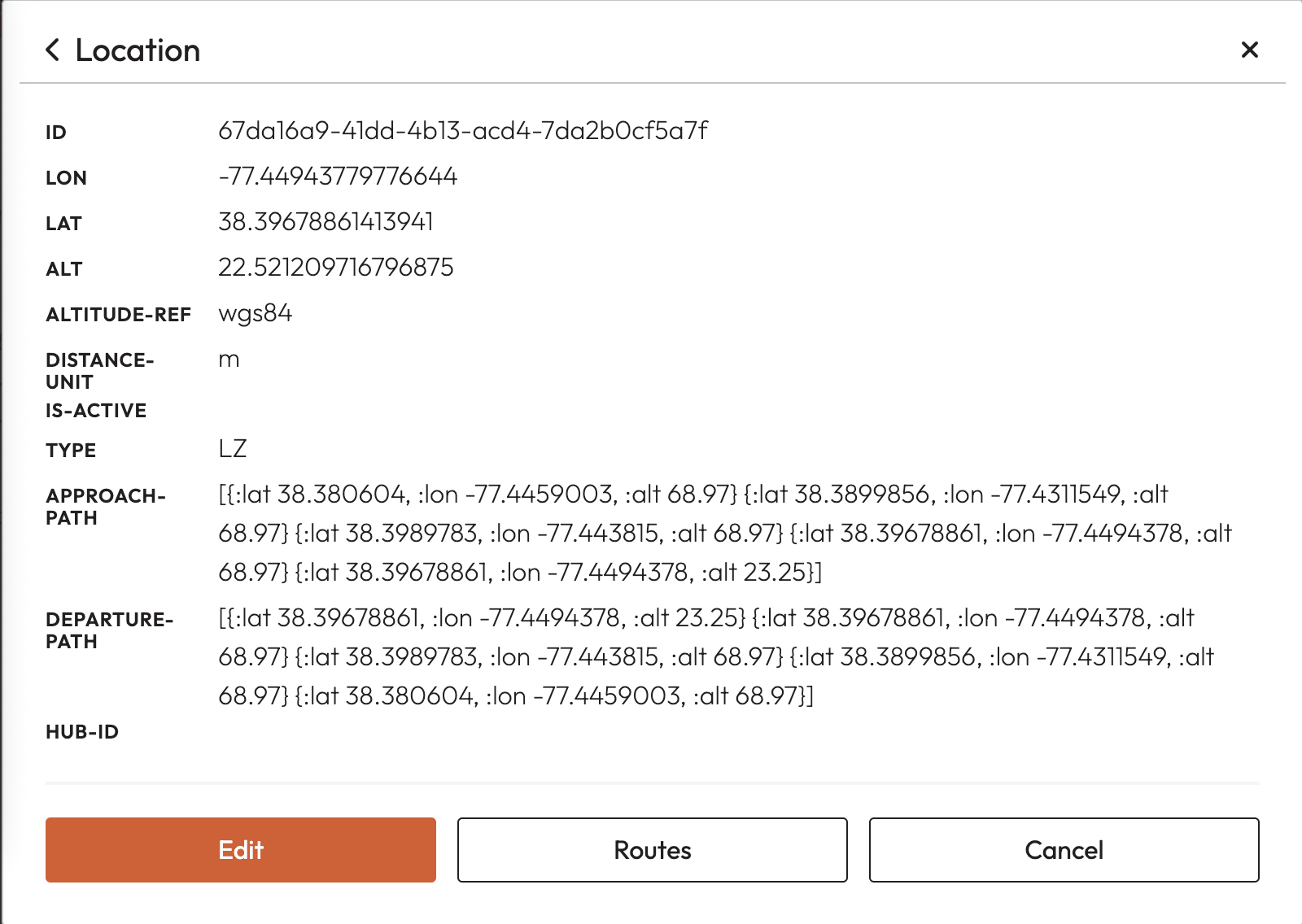
| Approach | [{:lat 38.380604, :lon -77.4459003, :alt 68.97} {:lat 38.3899856, :lon -77.4311549, :alt 68.97} {:lat 38.3989783, :lon -77.443815, :alt 68.97} {:lat 38.39678861, :lon -77.4494378, :alt 68.97} {:lat 38.39678861, :lon -77.4494378, :alt 23.25}] |
| Departure | [{:lat 38.39678861, :lon -77.4494378, :alt 23.25} {:lat 38.39678861, :lon -77.4494378, :alt 68.97} {:lat 38.3989783, :lon -77.443815, :alt 68.97} {:lat 38.3899856, :lon -77.4311549, :alt 68.97} {:lat 38.380604, :lon -77.4459003, :alt 68.97}] |
Reference: Example from another LZ
| Path | Waypoints |
|---|---|
| Approach (note: extra waypoint added during ArUco tag capture troubleshooting — not required) | [{:lat 33.06571226642623, :lon -96.8921728494047, :alt 230.09626261901855} {:lat 33.0659338, :lon -96.8928747, :alt 230.09626261901855} {:lat 33.0659338, :lon -96.8928747, :alt 173.70826261901857} {:lat 33.0659338, :lon -96.8928747, :alt 149.32426261901855}] |
| Departure | [{:lat 33.0659338, :lon -96.8928747, :alt 149.32426261901855} {:lat 33.0659338, :lon -96.8928747, :alt 230.09626261901855} {:lat 33.06571226642623, :lon -96.8921728494047, :alt 230.09626261901855}] |
Altitude translation spreadsheet: https://docs.google.com/spreadsheets/d/14jB1AOJV41RT0_OapiTrrQrIcRDGcgnJFiB-kBm4tLo/edit?usp=sharing
Entering Routes in the UI
Known Bug: When you paste waypoints, any click outside the input box will erase whatever you pasted. Follow the workaround below carefully.
### Set altitude-ref
Configure the altitude reference before entering any waypoints.
### Paste placeholder into the approach field
Paste or write placeholder content into the approach input field.
### Click outside the approach field
You'll see `[object Object]` — this is expected.
### Paste departure waypoints
Paste your actual values into the departure field.
### Paste approach waypoints and immediately press Enter
Paste your actual values into the approach field and **immediately** hit Enter on your keyboard. Do not click outside the field first.
Once submitted, the approach and departure paths will display when you view a landing zone.
Last updated on