Mission Manager

Mission Manager serves as the primary command-and-control interface for supervisory oversight of all Unmanned Aircraft System (UAS) operations within a local area. It is accessible to Supervisors, Administrators, Operators, Vehicle Managers, and Visitors with role-appropriate permissions.
Once an active mission is received from HubOps or generated via the Mission Planner, it populates within Mission Manager. This interface is critical for maintaining situational awareness and ensuring the safety and compliance of the entire flight network.
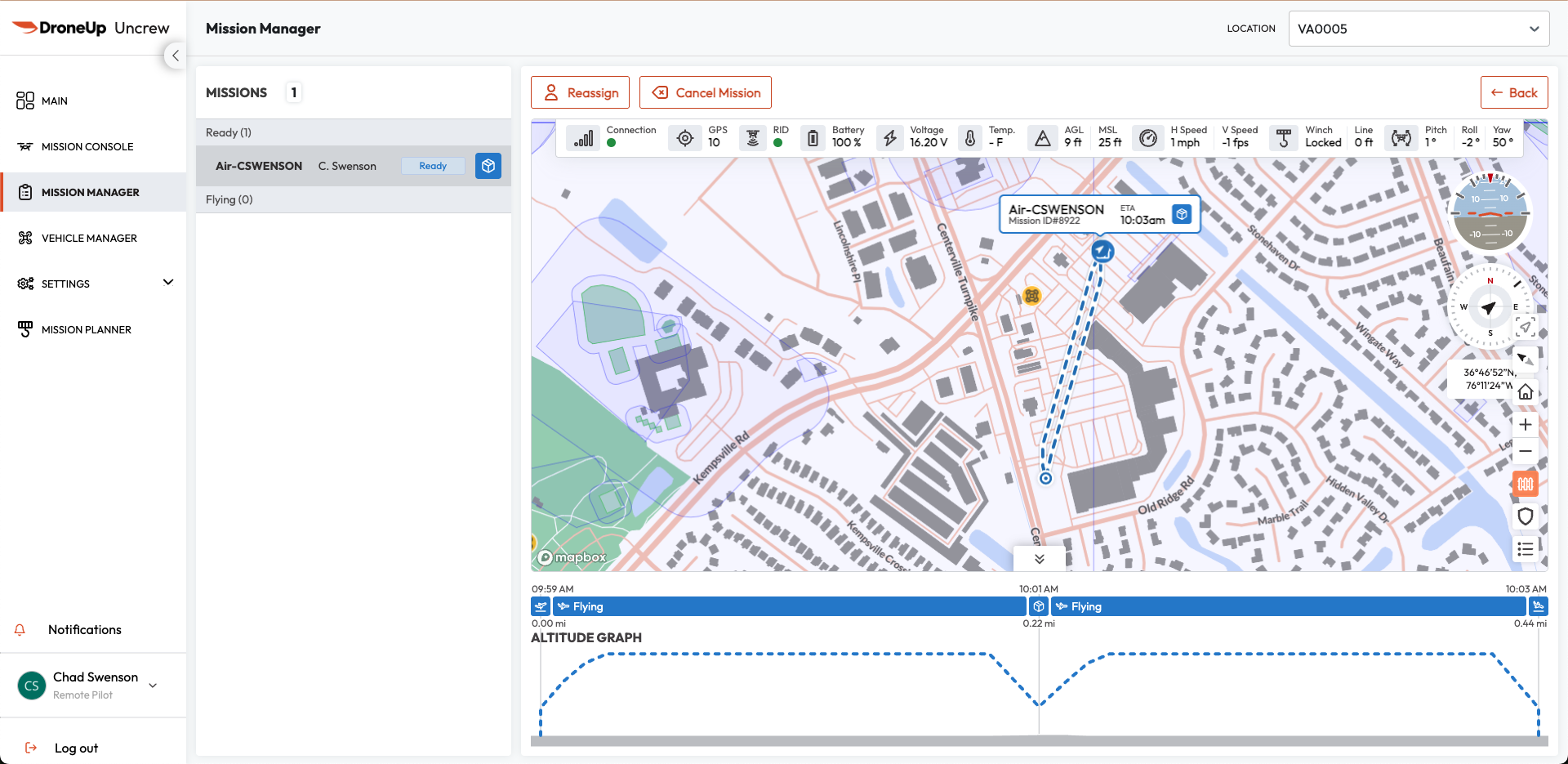 Figure 1: Mission Manager — Overview
Real-Time Monitoring
The Mission Manager provides a unified view of all flight operations in an area. Supervisory personnel can monitor multiple aircraft simultaneously, ensuring that every flight in the area is accounted for in real time.
Mission List
Displays all missions across the network, organized into dynamic status categories:
| Status | Description |
|---|---|
| UNASSIGNED | Created and awaiting operator assignment |
| READY | Operator assigned and awaiting mission start |
| FLYING | Mission actively executing |
| HOLD | Aircraft is in the air and holding position |
| DELIVERY | Mission actively delivering package |
| TIMEOUT | UTM-approved plan expired before completion |
| CONTINGENCY | Aircraft has entered a state where objectives cannot be completed |
| COMPLETED | Mission finished successfully |
| CANCELLED | Mission cancelled by a supervisor or assigned pilot |
| ABORTED | Mission terminated abnormally |
Empty categories are automatically hidden (except Assigned and Flying) to reduce visual clutter while preserving operational awareness.
Site-Based Filtering
A location selector in the Mission Manager header filters both the mission list and map to a specific operational area, enabling focused oversight of a single network area.
Flight Readiness
Missions are color-coded by criticality level for rapid assessment:
- Healthy — Green
- Caution — Yellow
- Warning — Red
Live Telemetry
Streams critical flight data directly from the aircraft via persistent gRPC subscriptions. Telemetry streams automatically reconnect after network interruption and gracefully handle gateway inactivity timeouts.
Interactive Map Visualization
A MapBox-based operational map displays:
- Active missions with mission tags and popups
- Planned route layers
- Live drone position and heading overlays
- Click-access to detailed mission information
Mission Criticality Alerts
A notification system surfaces real-time events including:
- New mission arrivals and status transitions
- Assignment changes
- Caution and warning events
- Connectivity degradation
- Winch events and contingency actions
Pre-Flight Verification & Telemetry
Before any mission is assigned or initiated, the RPIC must conduct a rigorous verification of the aircraft’s telemetry and mission integrity.
Verify connection status
Confirm the connection status indicator is green.
- Green — Aircraft is online, connected, and in an armable state.
- Yellow/Red — Aircraft is offline or in a non-armable state; troubleshooting required.
Verify Remote ID (RID)
When enabled, confirm the aircraft’s FAA Remote Identification broadcast is active to support regulatory compliance.
Review altitude profile graph
Verify the accuracy of the altitude graph (AGL/MSL) and speed parameters against the planned mission and environmental constraints. The graph provides:
- Planned flight-path altitude at each waypoint
- Actual drone altitude in real time during flight
- Terrain elevation profile along the route
- Contingency path overlays when triggered
- Distance markers with mission objective milestones
- Interactive hover detail for altitude values at any point
Monitor aircraft health metrics
| Metric | Description |
|---|---|
| Battery & Voltage | Remaining battery percentage with real-time voltage readings |
| GPS Integrity | Number of satellites acquired for high-precision positioning |
| System Temperature | Internal component temperature for trend awareness |
| Winch & Payload Status | Winch reel state, line deployment length, and delivery system integrity |
| Aircraft Attitude | Live pitch, roll, and yaw values for spatial orientation awareness |
| Horizontal & Vertical Speed | Ground speed and vertical velocity for trajectory verification |
Check Mission ETA
Estimated time to each mission objective, recalculated continuously as the aircraft progresses through the route.
Review terrain integration
Terrain elevation data normalizes altitude displays to AGL, improving terrain-clearance awareness across the entire route.
Mission Assignment and Control
Once telemetry is verified and the aircraft is confirmed ready, the Supervisor assigns the mission. Assignment and cancellation actions are restricted to users with the Supervisor role.
- Assignment — Allocate a pending mission to a specific remote pilot. The Supervisor selects an available pilot from the operator list and confirms the assignment.
- Reassignment — Missions in ASSIGNED or IN_PROGRESS status may be reassigned to a different pilot when operational continuity requires a staffing change.
- Cancellation — Cancel missions due to weather, safety concerns, or equipment issues. A supporting comment may be recorded. Missions can only be cancelled before takeoff (SUBMITTED or ASSIGNED status).
Mission Execution Controls
Once assigned, the RPIC manages execution from Mission Console:
- Flight Controls: Start Mission, Hold Mission, Resume Mission, Click-to-Fly, Return to Home, Safe Altitude, ALZ Landing, Land in Place, Emergency Flight Terminate
- Delivery Controls: Start Delivery, Confirm Delivery Ready, Complete Delivery, Abandon Line
- Logging: Flag Mission for timestamped post-flight review
Shift Management
The shift system controls operator availability and mission assignment flow:
- Start Shift — The RPIC selects an operational location and confirms readiness, including completion of pre-flight checks.
- End Shift — The RPIC waits for active missions to conclude or requests reassignment before ending the shift.
Mission Planning
Mission planning supports mission creation before they appear in the Mission Manager:
- UAV Selection — Choose the aircraft for the mission
- Site Selection — Select the operational location
- Objective Types — Configure takeoff, waypoint, loiter, spin, delivery, and landing objectives
- Visual Route Planning — Build and reorder routes on the map with objective placement and visualization