RPIC Control Station

The computer is a small form factor Windows PC, utilizing a DroneUp-controlled software build (DroneUp IT device builds are described in the PRISM V2.3 UMM).
To enable correct configuration of the GCS, connected to this PC are two monitors, a mouse and keyboard, and a network cable or wifi receiver puck. This device must be connected to a power source to function.
The RPIC holds final responsibility for ensuring this PC is configured correctly for use. A preconfigured software device build is defined and installed on the device. This build installs specific applications needed for operations.
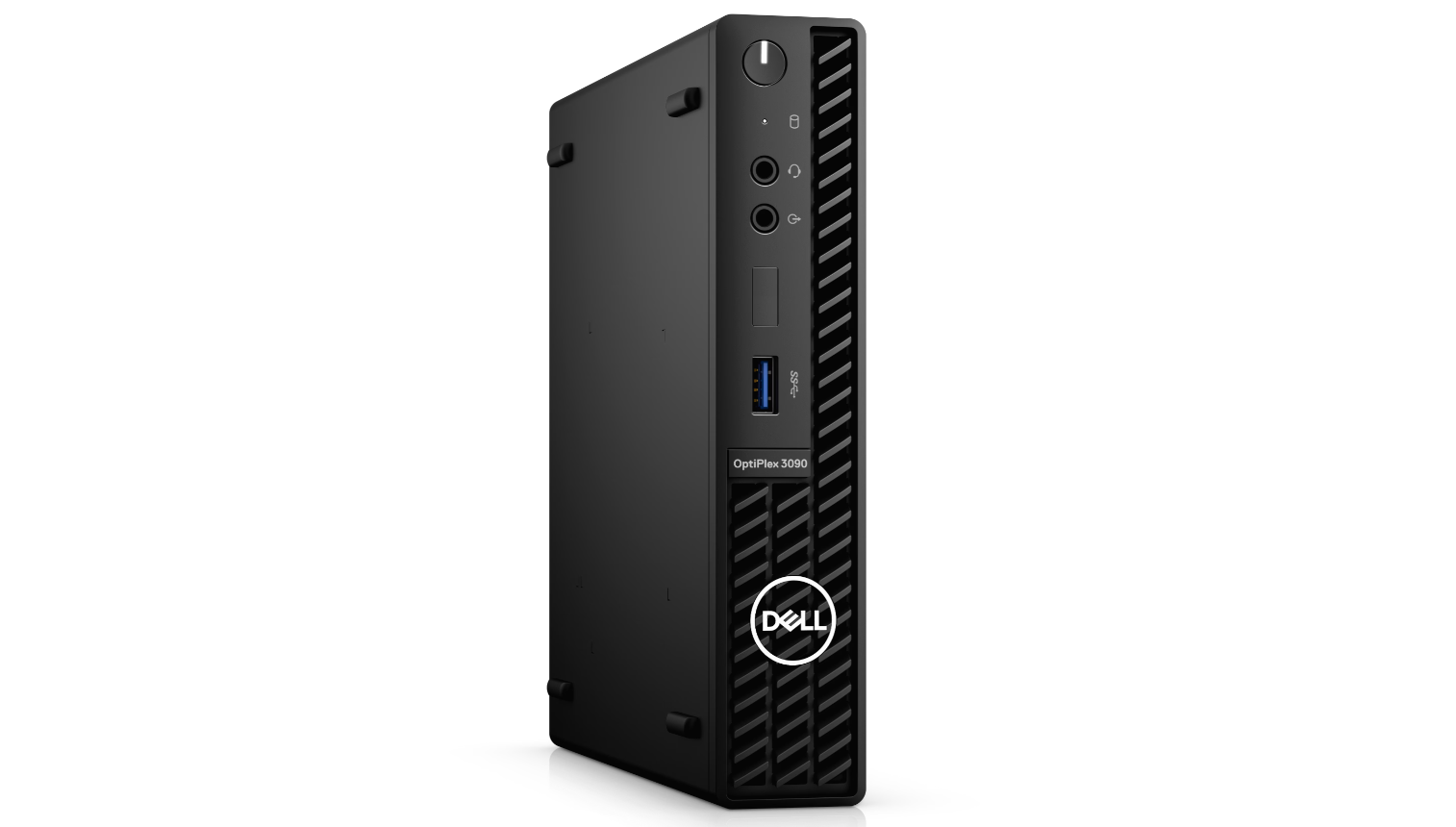
Configuration Item Number: 100-001-1000063
RPIC Control Station Accessories
The following items are utilized by the RPIC in conjunction with the RPIC Control Station computer to accomplish their role and undertake normal, abnormal, and emergency procedures.
LCD Monitor Display
The LCD Monitor Display is required in order to display visual information to the RPIC during flight operations.
The monitor is connected to the RPIC Control Station Computer via an HDMI cable. Two monitor displays are defined for use as part of the GCS.
The monitor is powered via a cord connected to the power source.
The RPIC holds final responsibility for ensuring this PC is configured correctly for use.
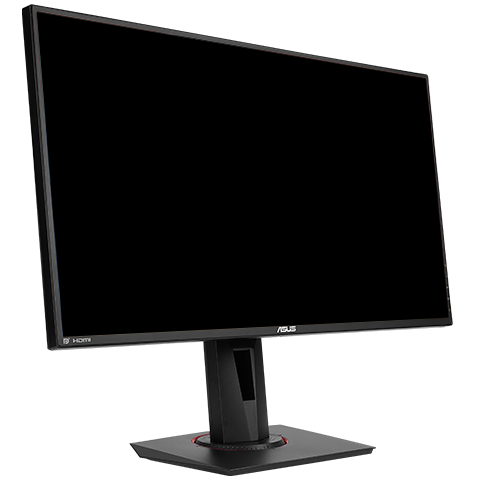
Configuration Item Number: 100-001-1000065
It is recommended by the manufacturer to configure the screens, on the RPIC Control Station Setup and Power On normal procedures are completed, in one of the two configurations. This enables the RPIC to have sufficient visual access to vital information throughout the flight operation. Details on these two screen layouts can be found in Section 3.2.7.
Wireless Mouse
The wireless mouse is used to manipulate the RPIC control station computer and any software that computer is running. This device is used by the RPIC whenever they are using the computer.
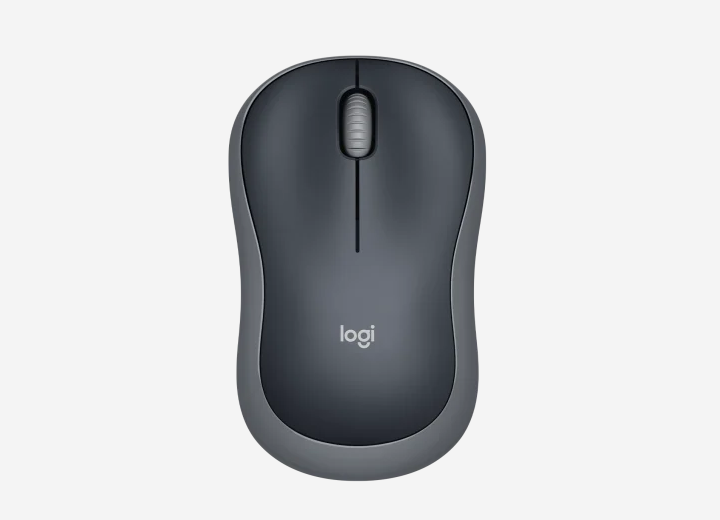
Configuration Item Number: 100-001-1000069
Wireless Keyboard
The wireless keyboard is used to manipulate the RPIC control station computer and any software that computer is running. The device is used by the RPIC whenever they are using the computer.
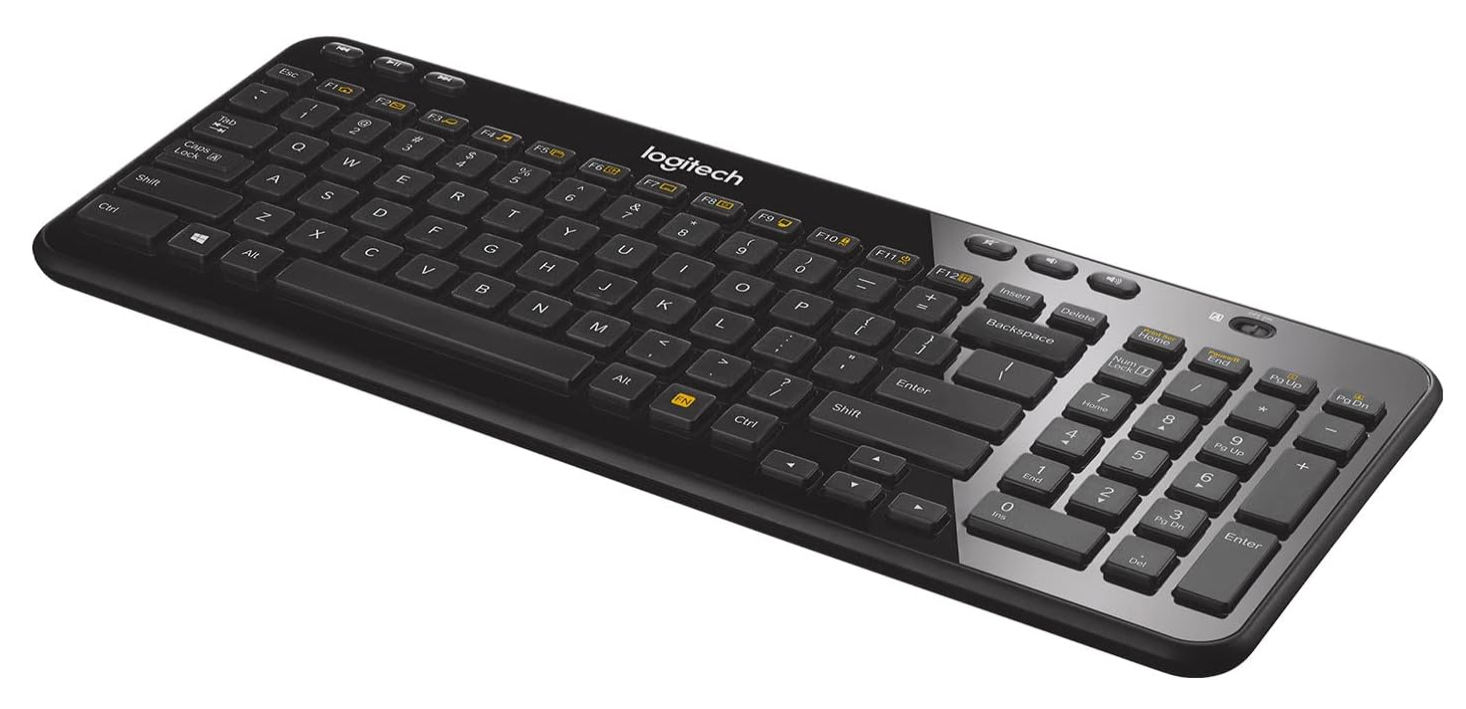
Configuration Item Number: 100-001-1000068
Zebra Scanner
The Zebra Scanner device allows an RPIC to manage DroneUp delivery orders. The Zebra Scanner contains a barcode reader that enables multiple automated steps within the delivery process, such as scanning packages before delivery.
The Zebra Scanner runs a version of Android OS and is installed with pre-configured DroneUp-controlled software builds.
The device has a main touchscreen on the front as the primary interface, with buttons on either side of the device that enables the barcode scanner, adjusts volume controls, and enables lock/unlock functions. The barcode scanner is at the top of the device.
To scan with the Zebra scanner, following the steps listed below:
Point the scanner at the asset tag and press and hold one of the yellow buttons on the side to scan.
An Asset Status page will display on the screen
If scanning for operational status change, slide Operational slider to appropriate side.
If scanning for battery charging, select the “Start Charging Session” button at the bottom of screen.
Select OK on confirmation screen displaying the time of the charging session.
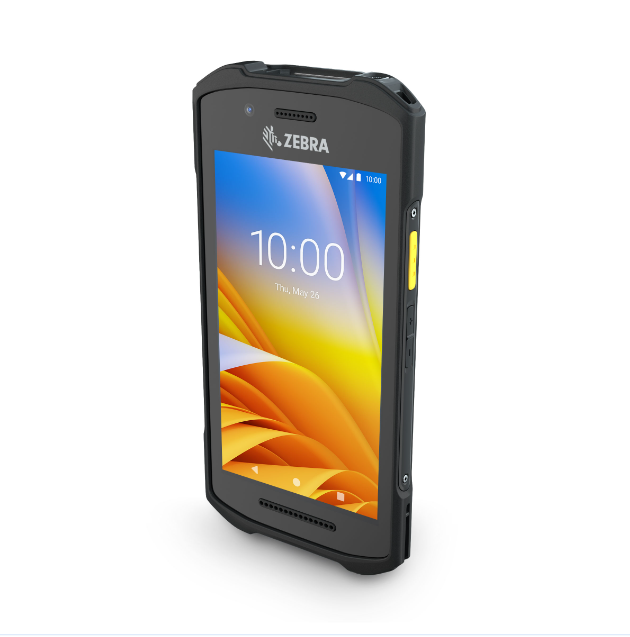
Brand Zebra Model TC210K Part Number TC210K-0HD224-NA
2-Way UHF Radio Communicator - Motorola
The 2-Way UHF Radio Communicator is a communications device that is utilized by the RPIC and crew members for communication during flight operations. The use of this accessory is required when operating with visual observers.
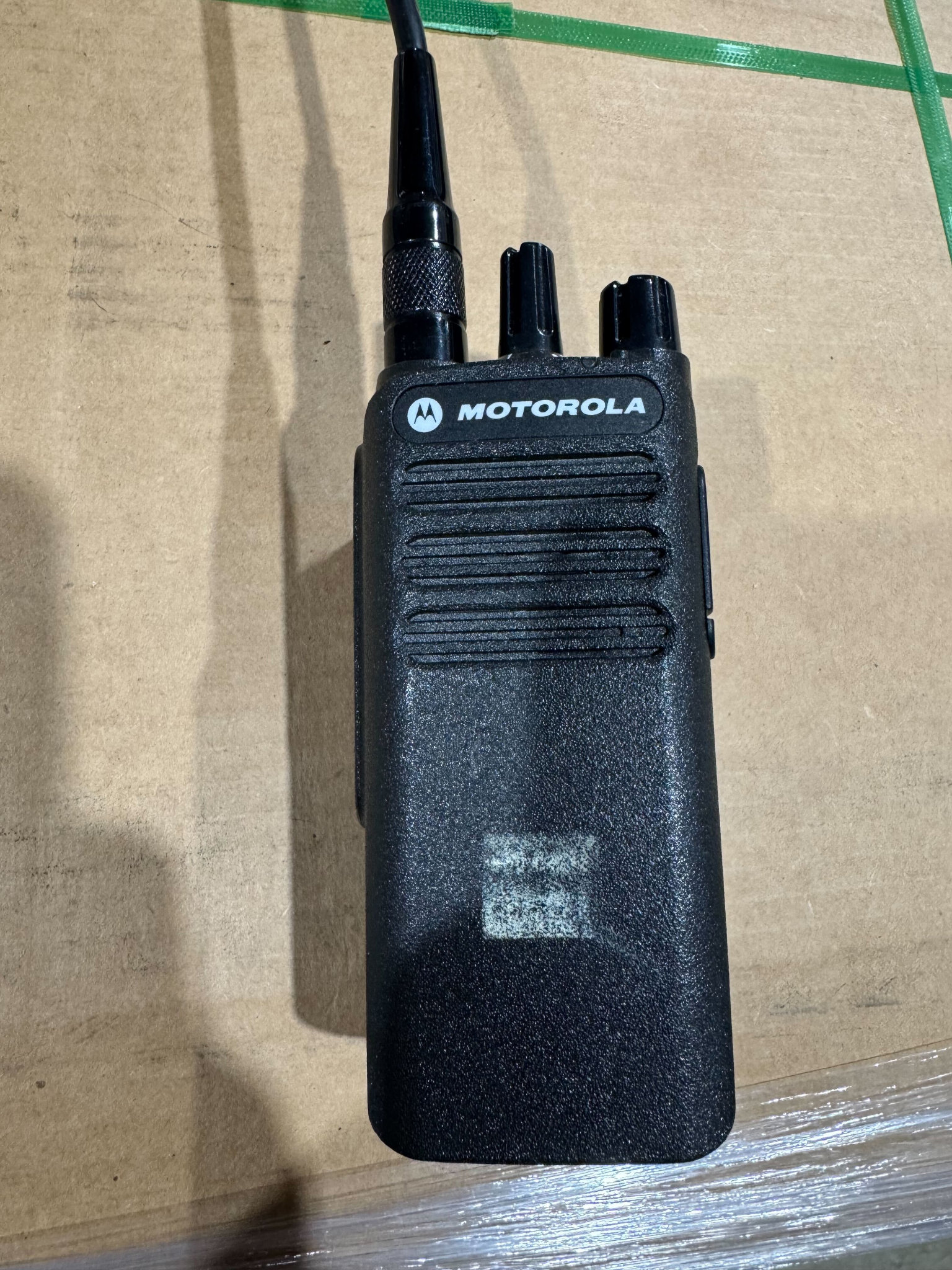
Configuration Item Number: 100-001-1000066
Scale, External Load Weight Measurement
If performing package delivery or loading a package on the aircraft, the RPIC must be equipped with an adequate scale for measuring the dynamic external load weight.
RPIC Tablet
A tablet PC is utilized as the secondary computing device for operating the PRISM V2.3 UAS. This is the RPIC’s secondary control interface for the aircraft. The software build on the RPIC tablet is preconfigured by the manufacturer, and is identical to the software build on the RPIC Control Station (refer to the PRISM V2.3 UMM for more information).
The RPIC Tablet is a tablet-form-factor Windows PC, utilizing a DroneUp-controlled software build that includes functionality for utilizing Auterion Mission Control (AMC). The RPIC Tablet is permitted to access the ASMIRA web client and Uncrew application via the manufacturer’s configuration.
A USB GPS Receiver is connected to the RPIC Tablet via a USB Type A cable.
The RPIC Tablet is powered via a cord connected to a power distribution system at the discretion of the RPIC but can also be powered via its own internal battery.
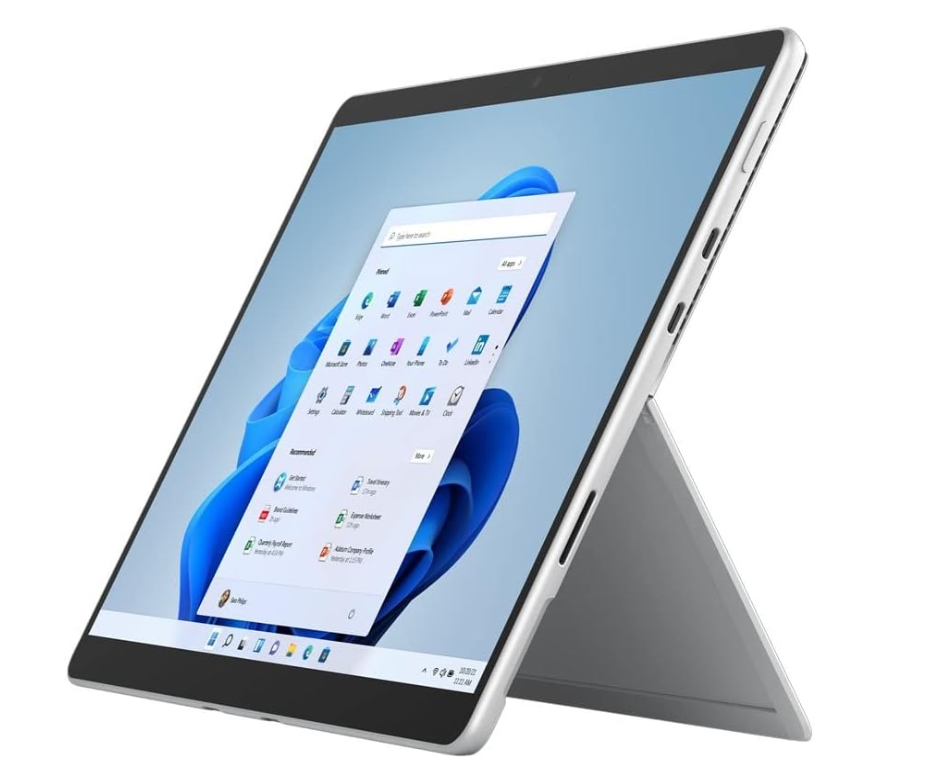
Configuration Item Numbers: 100-001-1000061
100-001-1000166
USB GPS Receiver Accessory
The USB GPS Receiver is an accessory that allows the Auterion Mission Control (AMC) application to understand the RPIC Tablet’s position in space, allowing for accurate Remote ID (RID) transmissions from the PRISM V2.3 aircraft.
The USB GPS Receiver supports GPS, GLONASS, QZSS, and SBAS positioning system data, enabling highly accurate positioning.
The RPIC must ensure this device is operating properly and is connected to the USB port on the RPIC Tablet correctly. Operation of the device can be confirmed by the indicator signal on it in conjunction with the Remote ID indicator being green on the AMC application.
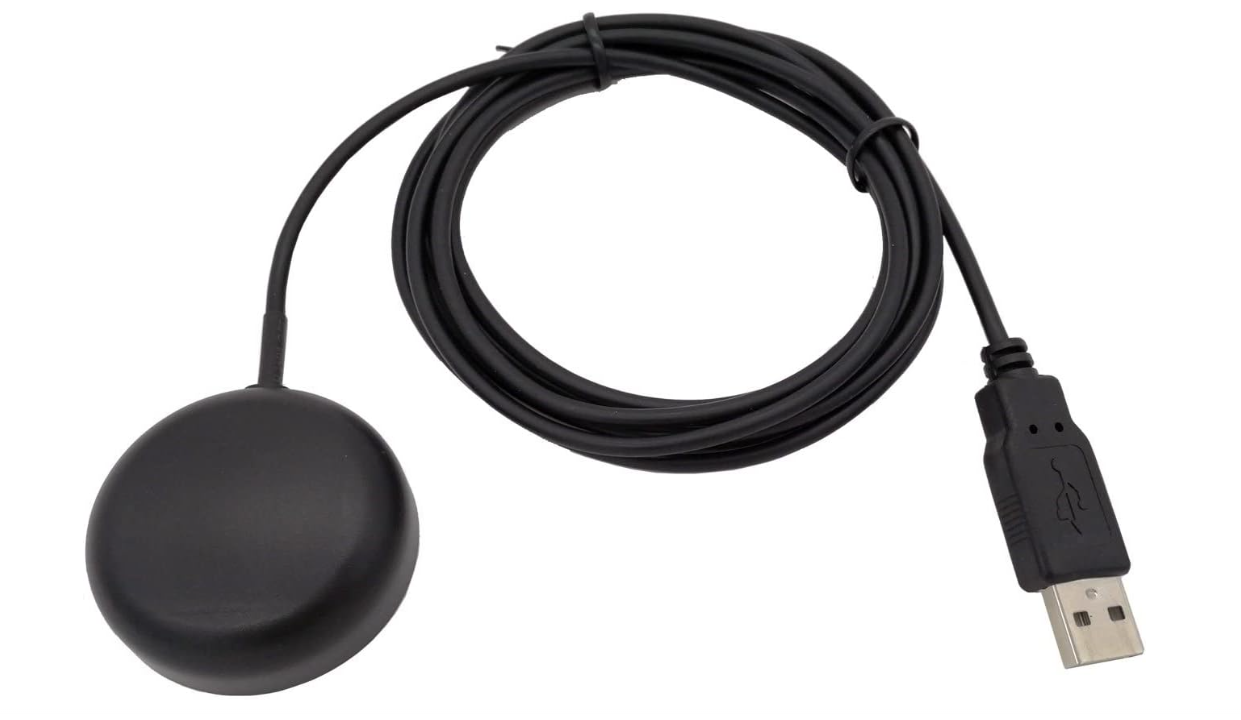
Configuration Item Number: 100-001-1000062
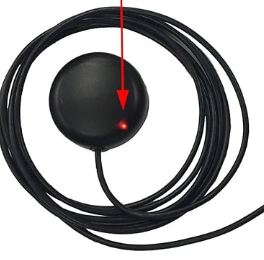
This device has no external controls but does feature a single status light on the top of the device indicating its operation. When the light is powered on but no GPS fix has been achieved, the light will be solid red. When the device is powered and there is a GPS fix, the indicator will be red and will flash persistently. When not powered, the light will not be illuminated.
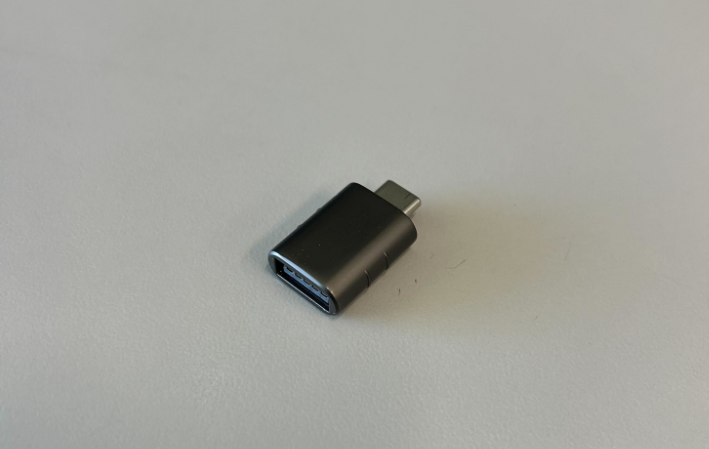
USB Type A to Type C Adapter Accessory
The USB Type A to Type C Adapter allows the USB GPS Receiver to be connected to the RPIC Tablet Pro 8 model. Without this device the USB GPS Receiver cannot be directly into the RPIC Tablet Pro 8 model. This device is not required when the Pro 7+ model is used for the RPIC Tablet.
This device has no controls.
The RPIC holds final responsibility for ensuring this device is operating properly and is connected to the USB GPS Receiver and RPIC Tablet correctly.
Configuration Item Number: 100-001-1000074
Auterion Mission Control (AMC)
AMC is used for operational redundancy in scenarios when other components (Uncrew) of the Ground Control Station encounter issues and to monitor specific messages and informational displays during operations.
The AMC application connects over LTE via the Halo device to Auterion Enterprise PX4 onboard the aircraft. AMC also connects to Auterion Suite, which is a web-based service that is utilized for fleet management.
The AMC application is accessible via dedicated LTE-enabled tablets that must be connected to the same VPN client as Uncrew and the aircraft.
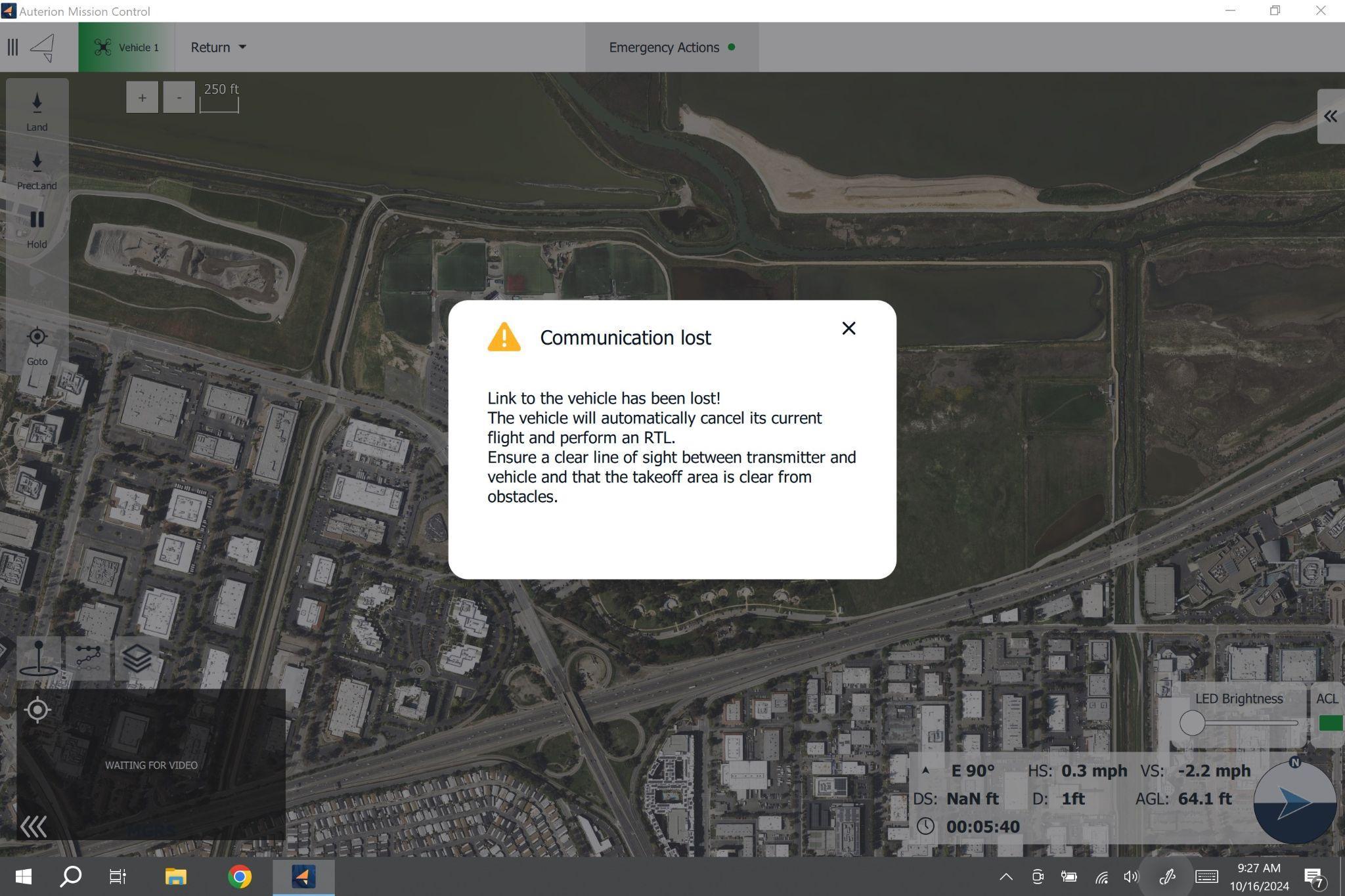
Within AMC is the main Fly View screen. The Fly View screen shall be open throughout the flight to receive and view any error messages from the autopilot. All relevant telemetry can be found within the Fly View screen. The telemetry displayed is: GPS status, aircraft energy level, heading, altitude, ground speed, vertical speed and duration of the flight. If telemetry and communication is lost to the aircraft, AMC will display a popup informing the RPIC (refer to AMC Communication Lost Popup figure).
The ability to command certain aircraft actions, described in detail below, is found on the left sidebar of the Fly View and top left upper toolbar.
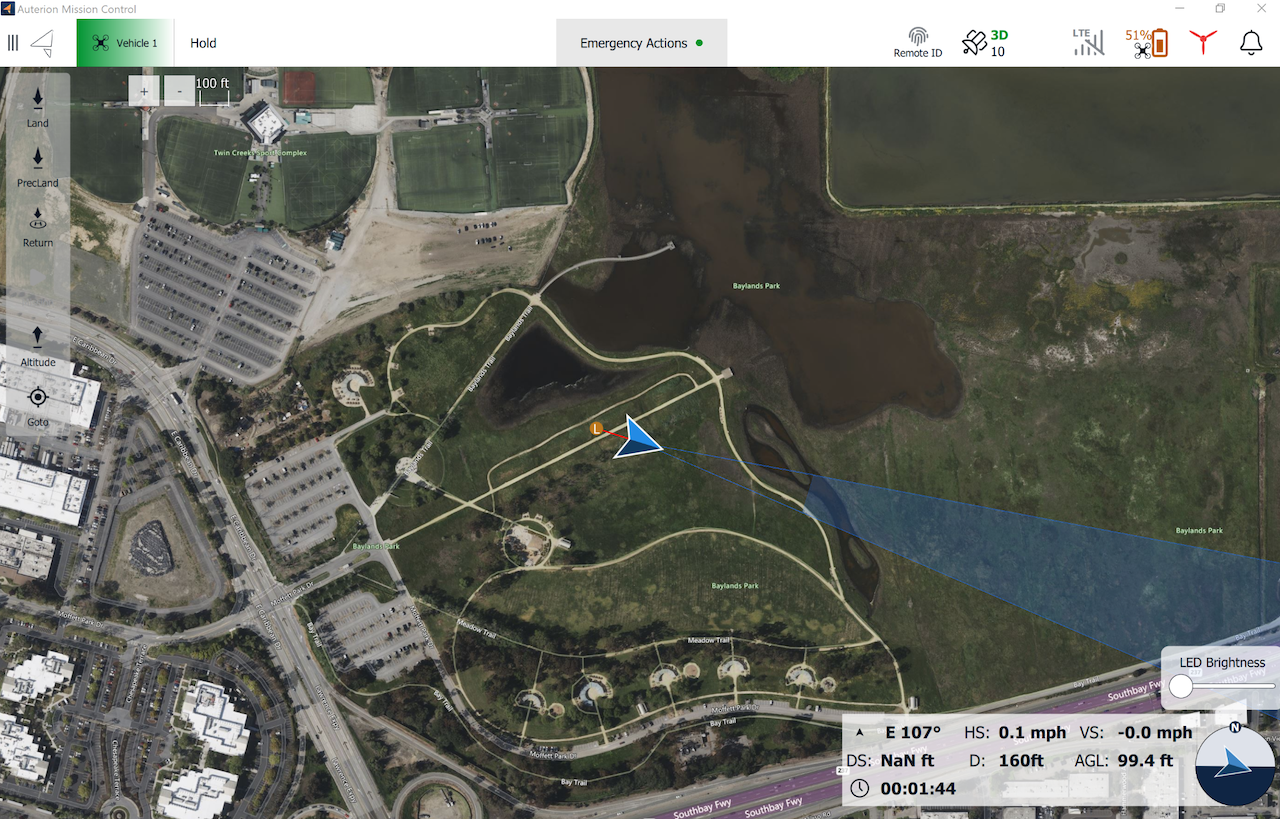
All aircraft commands selected by the RPIC in AMC require RPIC confirmation. This is done by pressing and holding the “Hold to Confirm” button popup found at the bottom of the Fly View map interface after the command is selected. This is required for all Quick Action or Mission Related Items including but not limited to Takeoff, Land, Mission, Return, Hold, etc.
AMC Click to Fly
Within AMC, only the Goto and Altitude functions are authorized for use when performing procedures located within Sections 3 and 4. Other available click to fly functions within AMC shall not be used in flight operations.
[Altitude]{.underline}
The Altitude function is used by the RPIC to climb or descend the aircraft to a desired altitude. Once the Altitude function is selected, the RPIC can set a new desired altitude via a slider on the right side of the Fly View screen.
The altitude being chosen is relative to the final approach and takeoff point elevation and is not the altitude above ground level. It is crucial for the RPIC to make note of the AGL reading by utilizing the onboard LiDAR sensor. Checking the LiDAR reading prior to executing this maneuver allows the RPIC to ensure they are descending or ascending to the desired safe altitude.
[Goto]{.underline}
The Goto function is used by the RPIC to navigate to designated waypoints. An RPIC can create a new waypoint within the Fly View screen once the Goto function has been selected. Once the point is created, before executing the function, the RPIC has the option to adjust altitude similar to how this was done in the altitude function.
AMC Test and Maintenance
A test and maintenance version of the AMC application is available on request to the manufacturer. This version differs in the following respects from the AMC pilot version. Unless performing duties outlined in the UMM, the RPIC should only use the pilot version of AMC.
The test and maintenance version of AMC:
Enables access to modify PX4 autopilot parameters and other vehicle setup pages including joystick setup, sensor setup and calibration, UAV CAN messages, camera setup, cellular setup, and AuterionOS.
Provides command options for Point of Interest (POI) and Orbit missions.
Provides planning, photo, analyze, and advanced options.
To be able to perform certain procedures in the UMM (i.e. anywhere the use of AMC is indicated in the UMM), the AMC test and maintenance version is necessary for use.
Though other features as aforementioned are provisioned within the test and maintenance version, Settings and Vehicle Setup features are specifically required for completion of maintenance procedure and thus are included on the test and maintenance version. Use of the AMC test and maintenance version must be in accordance with the maintenance procedures defined within the PRISM V2.3 UMM.
RPIC Tablet Cloud-Based Software
The RPIC utilizes numerous web or cloud-based software solutions during normal operations of the PRISM V2.3 UA and its AE. The RPIC Tablet AE is equipped with access to the ASMIRA Web Client and Uncrew cloud-based software application. All cloud-based software is configured by the manufacturer. No software configuration is required by a crew member.