Mission Planner

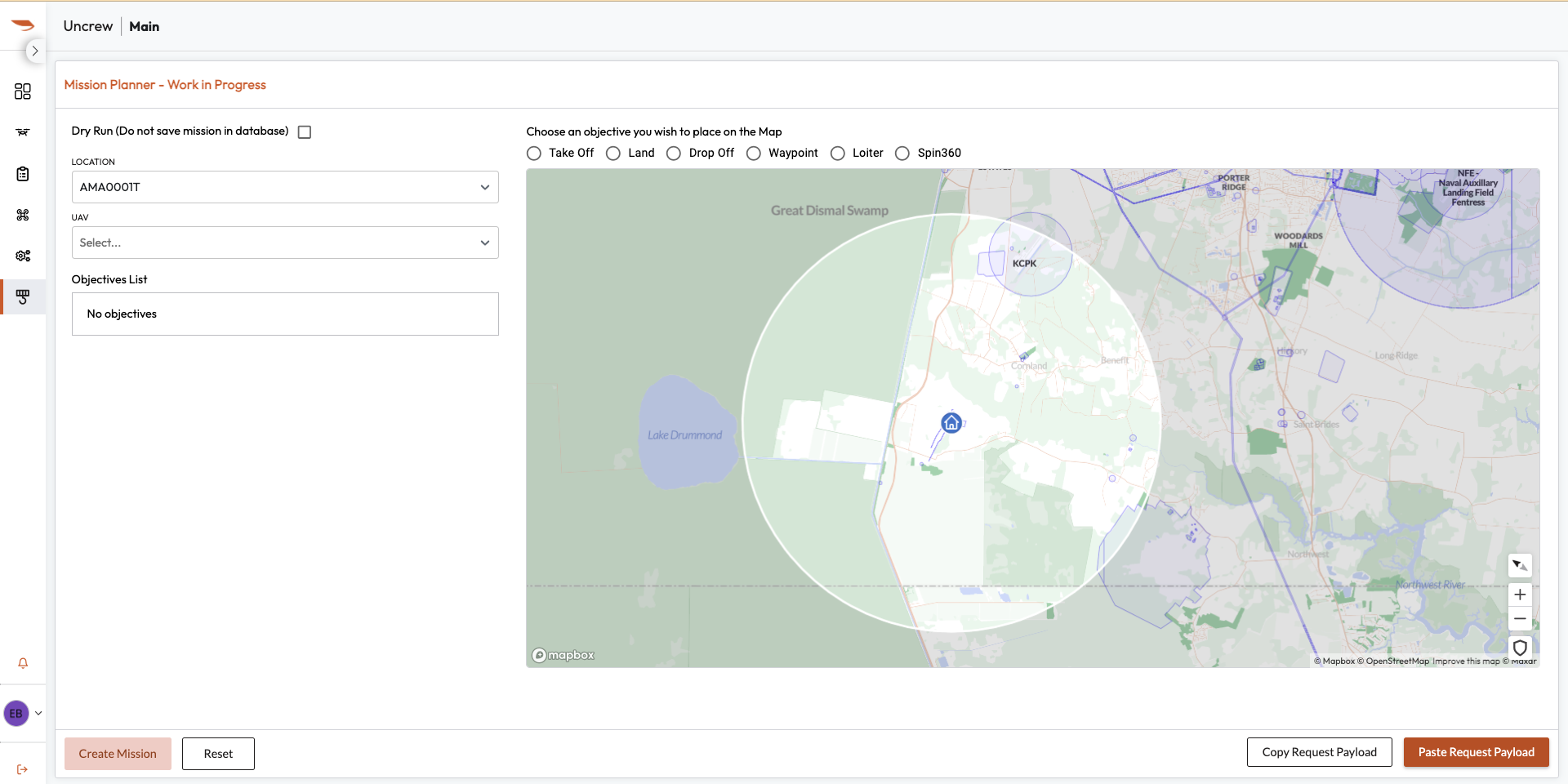
Mission Planner is the interface used by flight crews to build and generate missions within Uncrew. Delivery missions and Route missions can be created in Mission Planner in accordance with RPIC requirements.
How to Build and Save a Mission
Begin by selecting the current location within the LOCATION dropdown.

Next, select the current aircraft being used within the UAV dropdown.

Next, designate the objectives and locations of the objectives that will be within the desired mission. Begin by designating the Take Off and Land location.

Click on the bubble next to each objective name then click on the map interface to place the objective at the desired location. Once the objectives are placed on the map interface, they appear on the Objectives list found on the left side of the Mission Planner interface. For each objective, the latitude and longitude can be adjusted as needed. For waypoint objectives, the altitude can also be adjusted. For loiter objectives, the altitude and hold time can also be adjusted. For Spin360 objectives, the altitude, spin direction, and number of 360 degree spins can also be adjusted.
For missions, a minimum of three (3) objectives are required, Take Off, Drop Off (or Waypoint), and Land. Within the Objectives List, the objectives are executed from top to bottom.
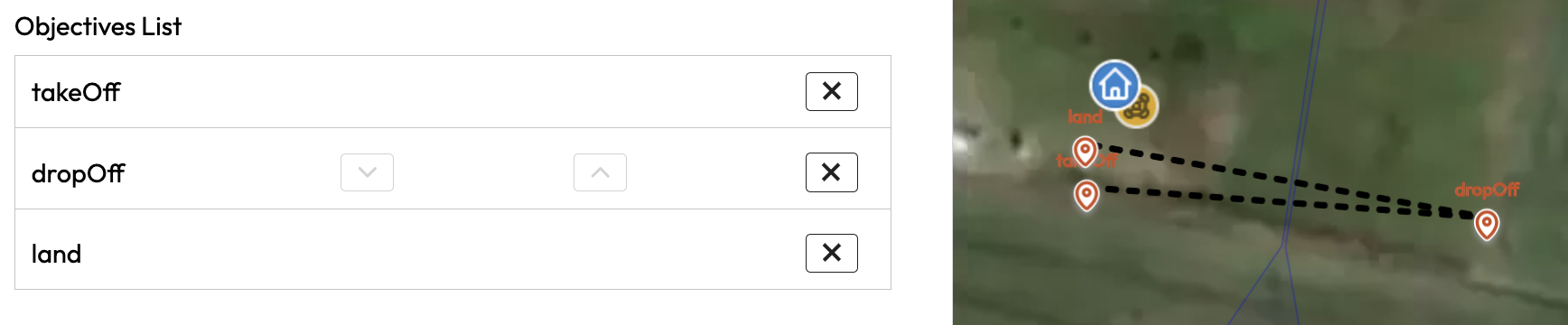
If a specific route is required by the RPIC, click the bubble next to the Waypoint objective. Adding Waypoint, Loiter, or Spin360 objectives allows for a more specific route between different objectives.
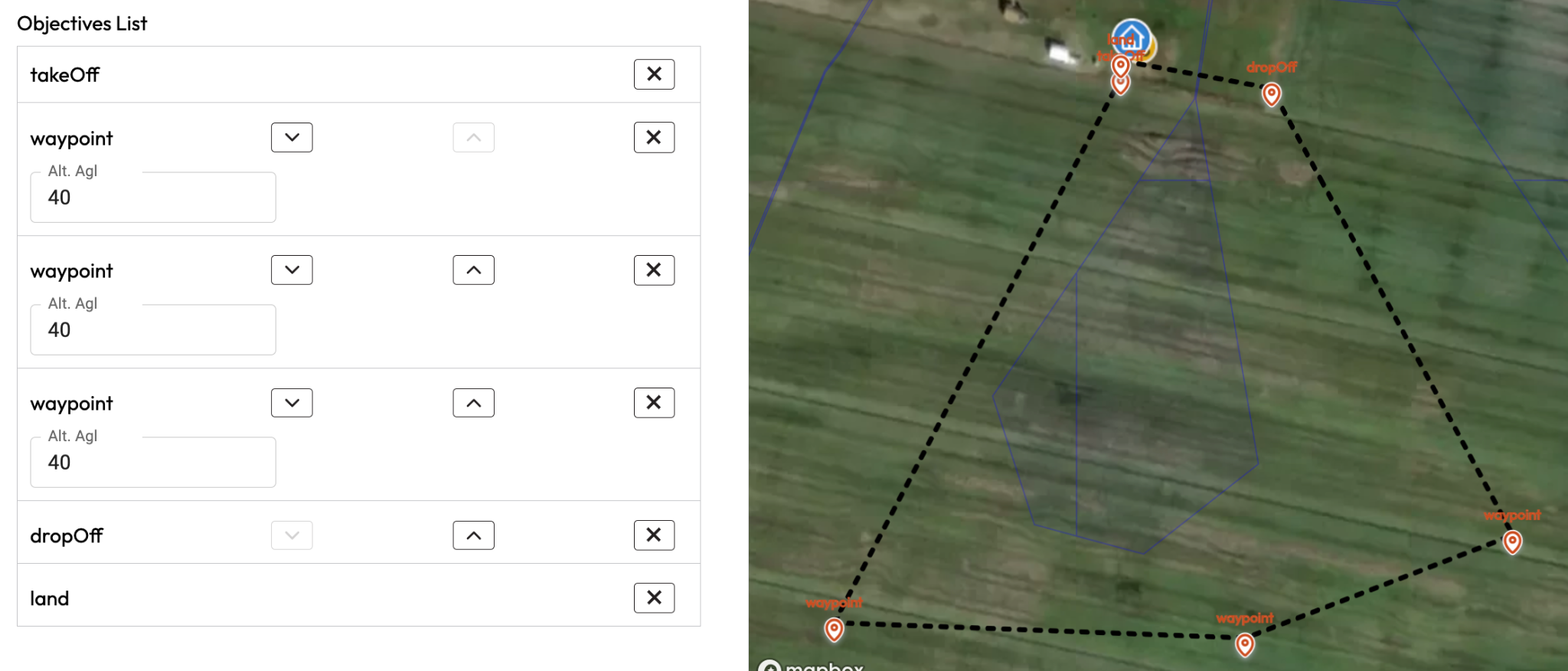
Once Waypoint, Loiter, and Spin360 objectives are populated on the map, the up/down chevrons can be utilized to correct or adjust the desired order of objective execution. Within Waypoint objectives, the altitude (AGL) will need to be designated. The units used in Waypoint objectives are in meters. Within Loiter objectives the duration should also be designated. The unit for duration is in milliseconds.
Once the required mission has been built, select the “Create Mission” button found in the bottom left corner of the Mission Planner interface. Alternatively, if it is desired to start over in the mission building process, the “Reset” button may be selected.
If the built mission is intended to be repeated, select the “Copy Request Payload” button found in the bottom right corner of the Mission Planner interface. Once selected, navigate to an outside document to paste the mission to be used for future purposes. When building another mission from the start, this copied mission can be pulled from an outside document and be populated back into Mission Planner by utilizing the “Paste Request Payload" button.
