Click To Fly - AMC

INDICATIONS
- Automated Flight Path needs to be aborted
- Manual Navigation to HOME Location or ALZ needs to be initiated as directed by other procedures RPIC Tablet will not display any specific messages indicating to initiate this procedure.
POSSIBLE CAUSES
- Inoperable Uncrew GCS and/or onboard aircraft Uncrew software during specific flight phases are indicated by other abnormal/emergency procedures.
FAILSAFE BEHAVIOR
There is no Failsafe for this emergency.
EXPANDED ABNORMAL PROCEDURE
Click-to-Fly ANNOUNCE
The RPIC is to announce the voice comms “Click-to-Fly - AMC” once abnormal conditions are identified using the indications information above. The use of the Click-to-Fly abnormal procedure will only occur at the need from other abnormal or emergency scenarios.
AMC: Altitude SET
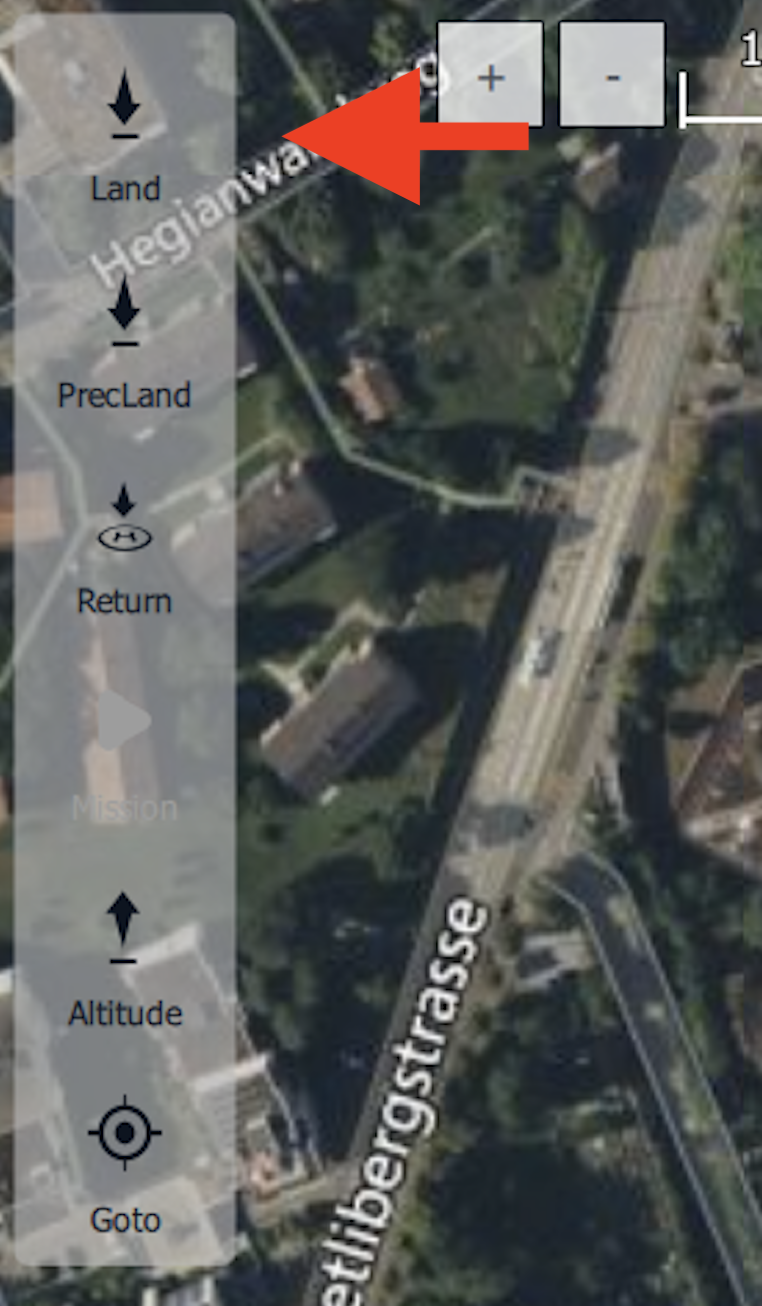
The Altitude command is located on the action toolbar on the upper left side of the AMC Fly View on the RPIC Tablet. Selection of this command will result in the aircraft ascending or descending to the desired altitude selected by the RPIC.
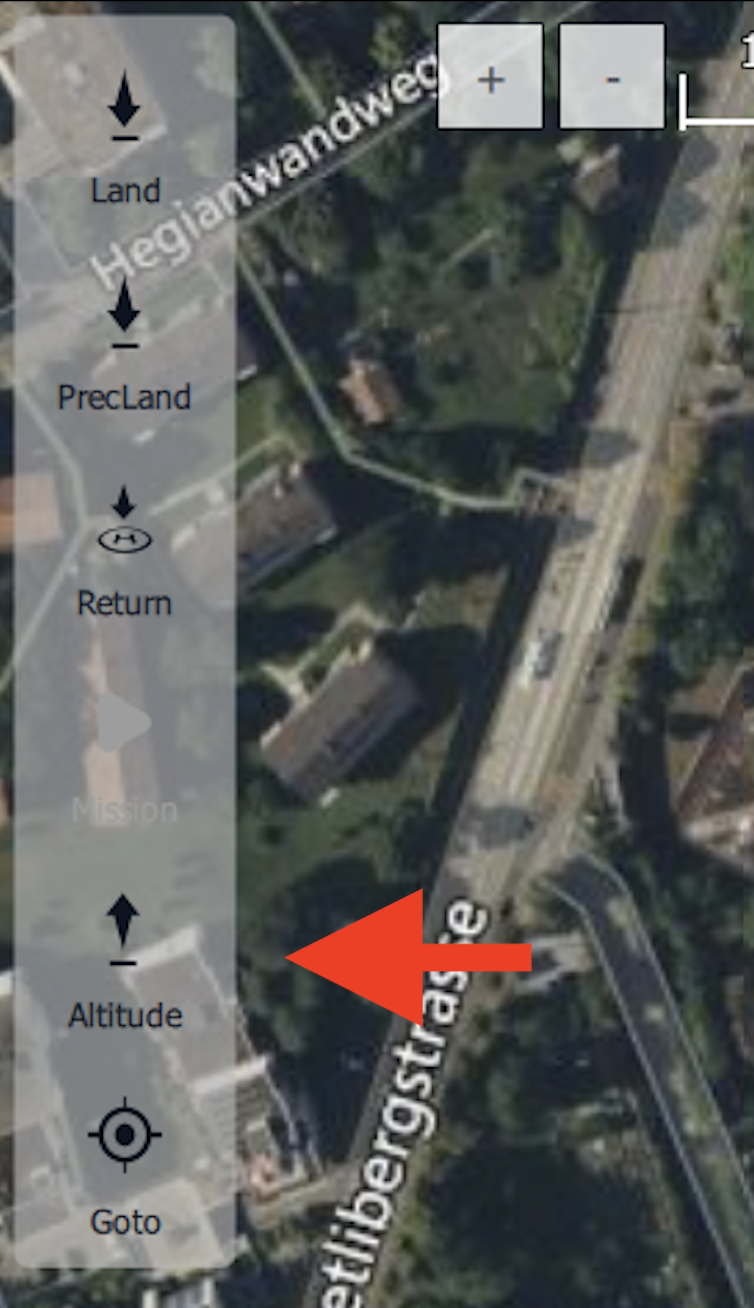
Once the “Altitude” button is selected, the RPIC will use the altitude slider found on the right side of the Fly View map to set it to cruise altitude.

Once the desired altitude is selected, the AMC application will require RPIC confirmation. Press and hold the “Hold to Confirm” button popup found at the bottom of the Fly View map interface.
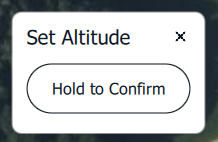
Once the Altitude command is confirmed, the aircraft will climb to the set cruise altitude.
Altitude VERIFY
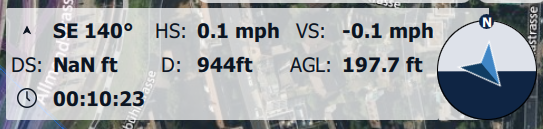
Once the Altitude command is completed, confirm the aircraft is at the proper altitude using the telemetry in the bottom right corner of the Fly View map interface on the RPIC Tablet.
AMC: Goto FLY BY waypoints back to desired location SELECT
The Goto command is located on the action toolbar on the upper left side of the AMC Fly View on the RPIC Tablet. Selection of this command will result in the aircraft flying a direct path to the desired waypoint set on the map by the RPIC. The RPIC must set the waypoints in a manner that ensures the aircraft does not fly over No Fly Areas.
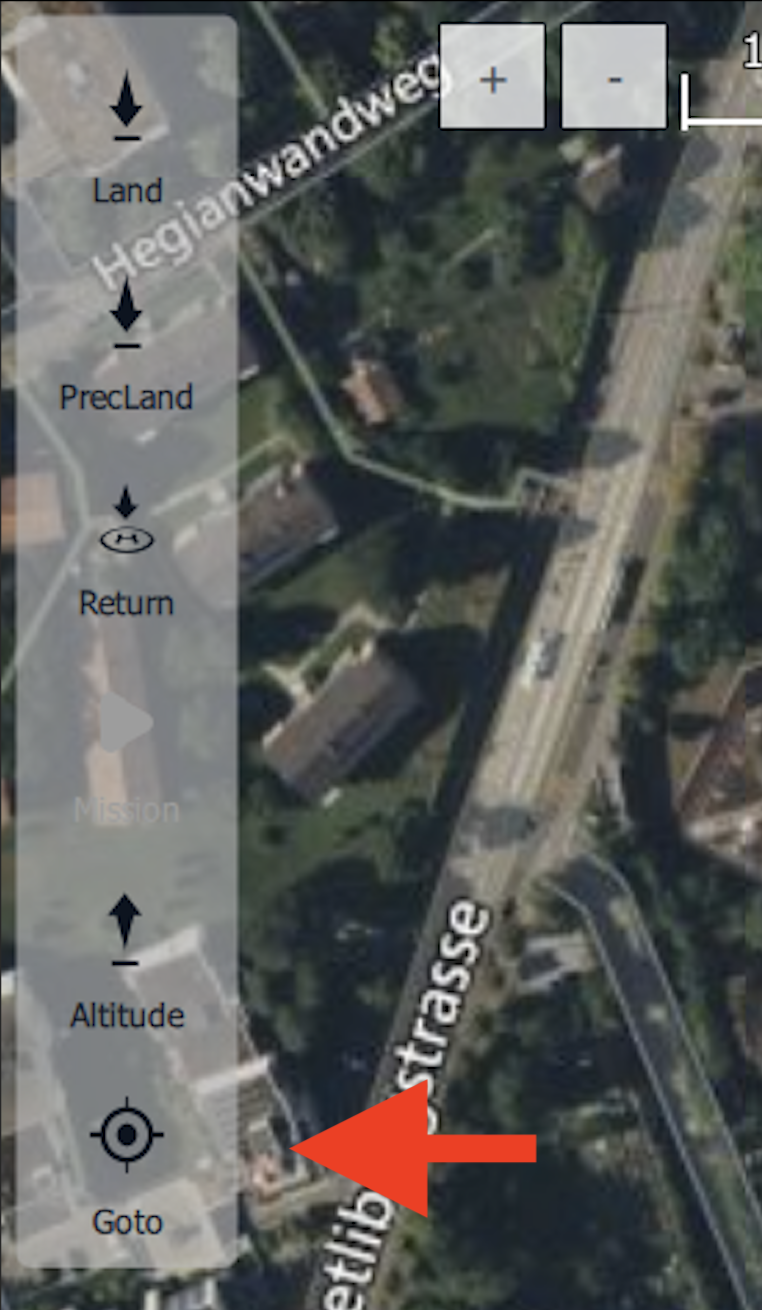
Once the “Goto” button is selected, the RPIC will create a waypoint by clicking at the desired point on the map. Once a waypoint is selected, a small point can be seen on the Fly View map interface.
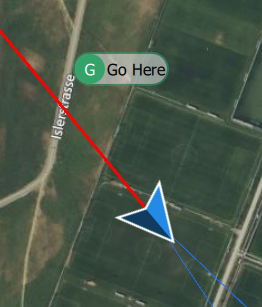
Once the desired waypoint is selected, the AMC application will require RPIC confirmation. Press and hold the “Hold to Confirm” button popup found at the bottom of the Fly View map interface.
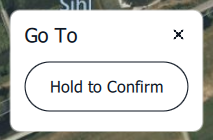
Once the Goto command is confirmed, the aircraft will begin to fly a direct path to the set waypoint. The RPIC must repeat setting multiple waypoints until the aircraft is back at the landing area or a nearby ALZ.
If Aircraft has degraded propulsion and there is a nearby ALZ:
Navigate to ALZ ANNOUNCE
If the aircraft is experiencing degraded propulsion, the RPIC must navigate the aircraft to a nearby ALZ. In order to navigate to the ALZ, the RPIC must repeat Step 4 using the Goto command.
RPIC/VO(s): Airspace Obstacles MONITOR
The RPIC/VO(s) shall monitor the aircraft in flight and ensure there are not any obstacles within the flight path. If obstacles are present, the VO will announce this to the RPIC in order for the flight path to be altered.
Over landing area, Land Mode ENGAGE
The Land command (Land Now) is located on the action toolbar on the upper left side of the AMC Fly View on the RPIC Tablet. Selection of this command will result in the aircraft entering Land flight mode and will begin descending for landing.
Once the “Land” button is selected, the AMC application will require RPIC confirmation. Press and hold the “Hold to Confirm” button popup found at the bottom of the Fly View map interface.
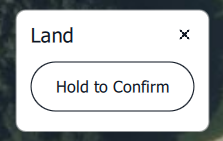
Once the Land command is confirmed, the aircraft will begin descending to the ground. Once touchdown is achieved, the aircraft will automatically detect the landing and will disarm.