Loss of Camera Feed

INDICATIONS
- ASMIRA camera feed doesn’t update video anymore in ASMIRA Web Client
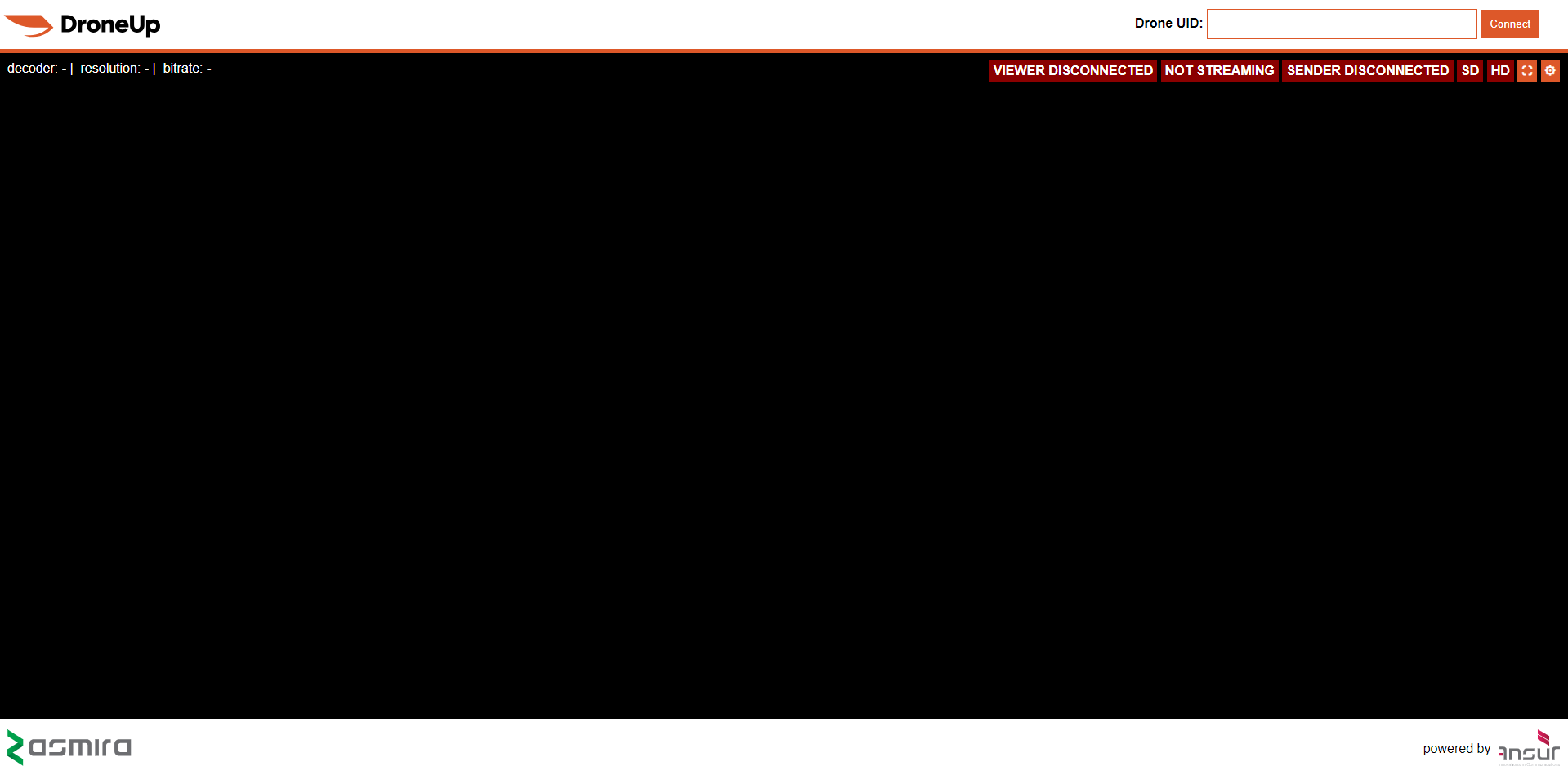
- ASMIRA camera feed shows “Viewer Disconnected”, “Not Streaming”, or “Sender Disconnected” in ASMIRA Web Client
POSSIBLE CAUSES
- Hardware failure of the FPV camera
- USB cable disconnection
- Damage to Front Aux Arm daughter board wiring harness
- Low C2 bandwidth or signal-to-noise ratio
- High C2 link latency
FAILSAFE BEHAVIOR
There is no Failsafe for this emergency.
EXPANDED ABNORMAL PROCEDURE
Loss of Camera Feed ANNOUNCE
The RPIC is to announce on voice comms “Loss of Camera Feed” once abnormal conditions are identified using the indications information above. Detection of a Loss of Camera Feed condition requires manual visual inspection of the ASMIRA Web Client on the RPIC Control Station to determine if either of the indication conditions are active.

Wait 30 seconds to regain video feed while monitoring C2 Interface WAIT
During this period of 30 seconds, monitor the ASMIRA Web Client on the RPIC Control Station to determine if the camera feed begins presenting video information. Indications that the camera feed is operational again are video images being displayed in the center of the web client in conjunction with the “Viewer Connected”, “Streaming”, and “Sender Connected” status information being present.

If video feed does not reappear:
Uncrew: Return to Home SELECT
Select the Return to Home Button within the Uncrew Mission Console on the RPIC Control Station.

Once the button is selected, a popup window will appear requiring RPIC confirmation. This window will remain displayed until “CONFIRM” is selected or exit (“x”) is pressed.
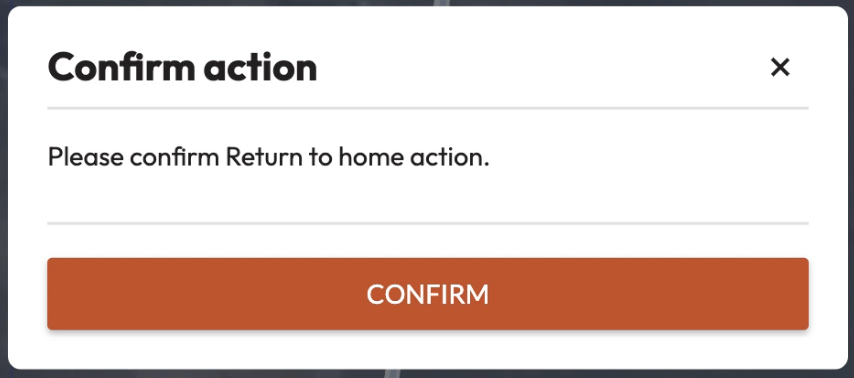
Once the command is confirmed, the aircraft stops performing the mission and begins navigating to the takeoff location. The aircraft maintains its altitude at the defined desired altitude. Uncrew navigates the aircraft so that all NFAs and perimeters are avoided. The Aircraft Status shall be Contingency.
At the takeoff location, the aircraft will land. Precision landing mode will be automatically attempted during the landing sequence.