In-Flight Fire Above 110 ft AGL

INDICATIONS
Visible fire or smoke on aircraft
AGL Altitude ≥110 feet
POSSIBLE CAUSES
Overheating
Energy Storage Device failure or damage
Electronic hardware failure
FAILSAFE BEHAVIOR
There is no Failsafe for this emergency.
PROCEDURE
EMERGENCY IN-FLIGHT FIRE ANNOUNCE
Announce over voice comms “In-Flight Fire” once emergency conditions are identified using the indications information above.
Uncrew: PAUSE SELECT
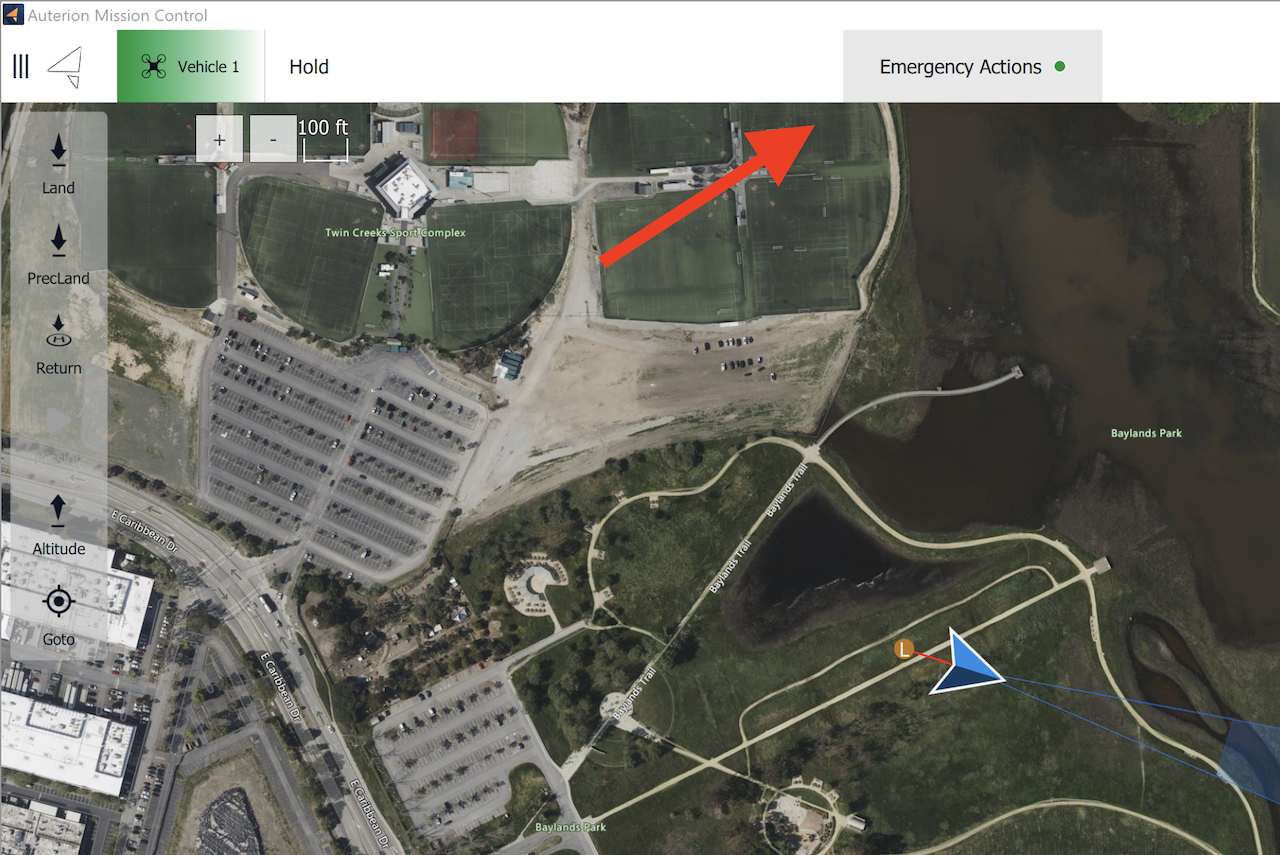
Select the “Pause” button that is located in the top left corner of the Mission Console on the RPIC Control Station.

Once the “Pause” button is selected, the aircraft holds its position in space until the next command is given.
Video Feed of Landing Area INSPECT
The RPIC should use the ASMIRA video feed to inspect the landing area directly beneath the aircraft on the RPIC Control Station.
If Landing Area Obstructed:
AMC: Click-To-Fly to unobstructed area ENGAGE
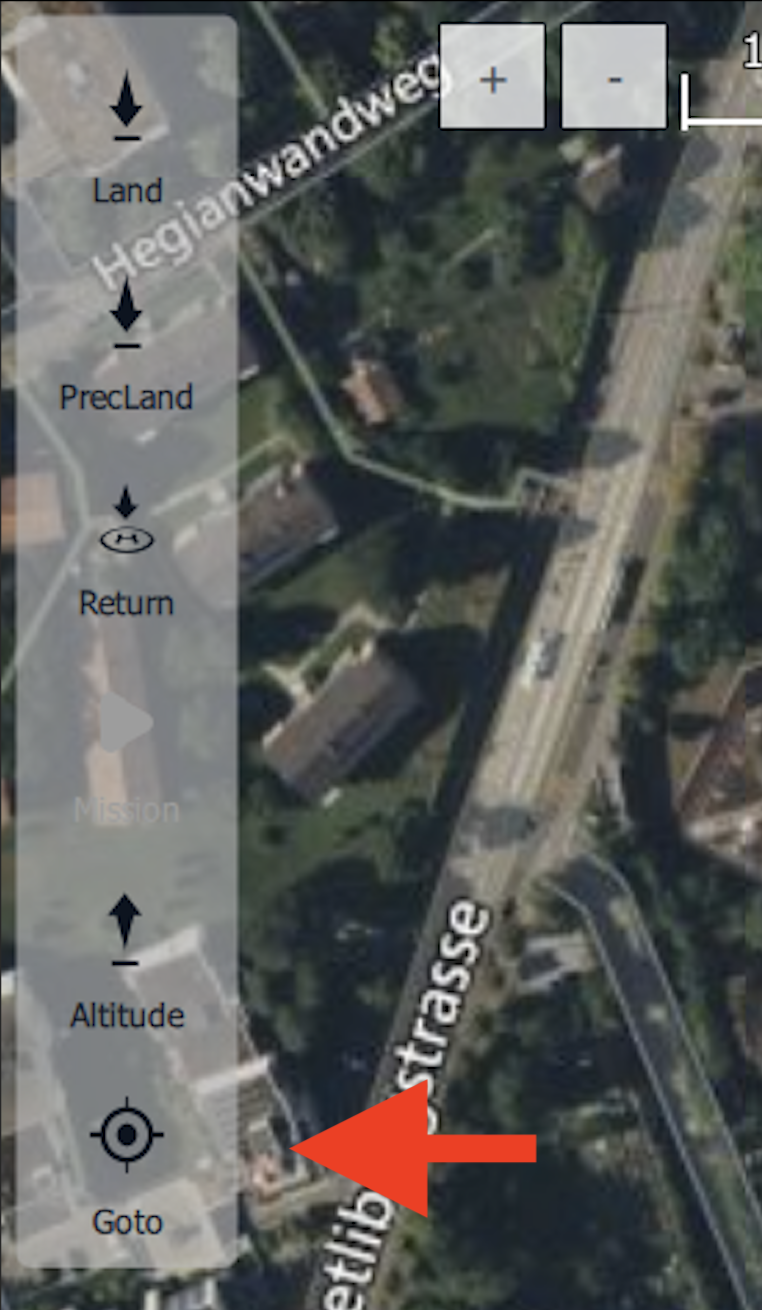
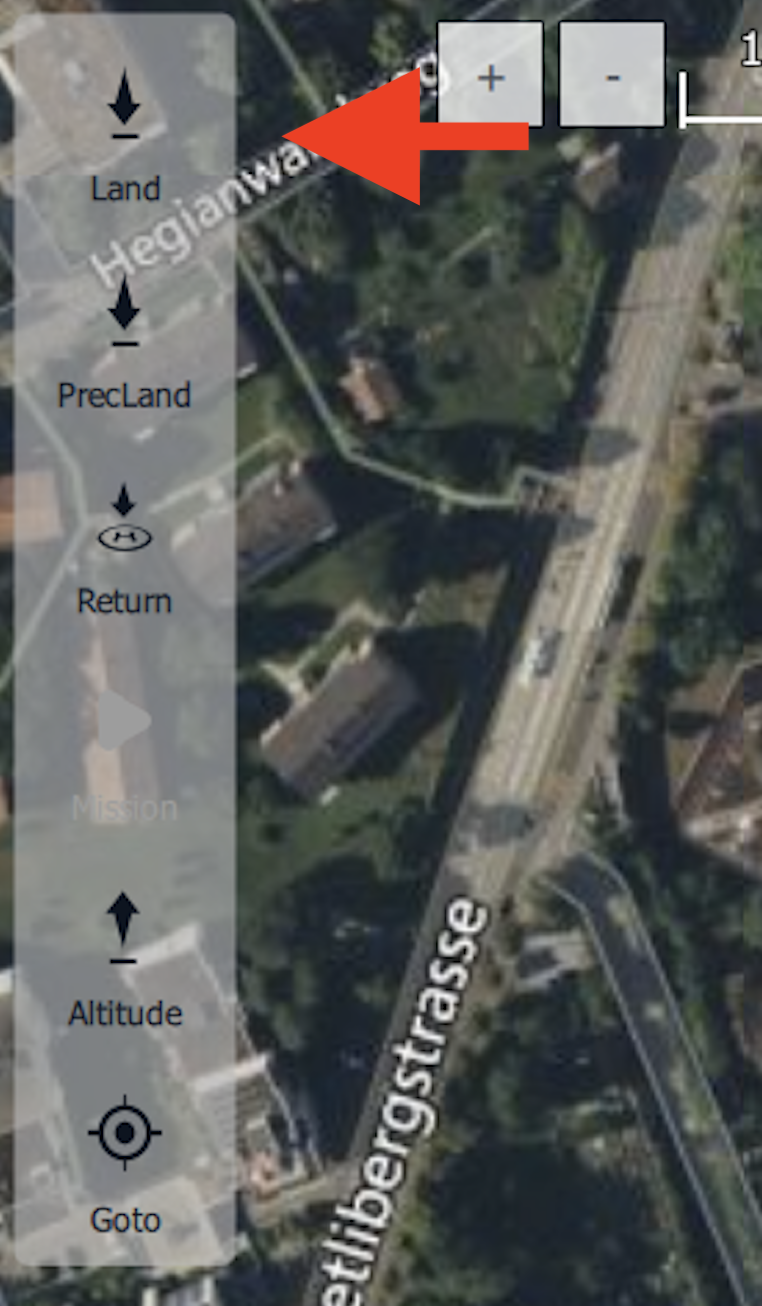
The “Goto” button is located on the action toolbar on the upper left side of the AMC Fly View of the RPIC Tablet. Selection of this command will result in the aircraft flying a direct path to the desired waypoint set on the map by the RPIC. The RPIC must set the waypoints in a manner that ensures the aircraft does not fly into No Fly Areas.
Once the “Goto” button is selected, the RPIC will create a waypoint by clicking on the desired point on the map. Once a waypoint is selected, a small point can be seen on the Fly View map interface.
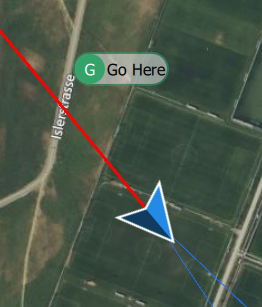
Once the desired waypoint is selected, the AMC application will require RPIC confirmation. Press and hold the “Hold to Confirm” button popup found at the bottom of the Fly View map interface.
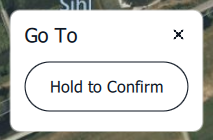
Once the Goto command is confirmed, the aircraft will begin to fly a direct path to the set waypoint. The RPIC must repeat setting multiple waypoints until the aircraft is back at the landing area or a nearby ALZ.
If Landing Area Not Obstructed:
AMC: LAND BUTTON SELECT
The “Land” button is located on the action toolbar on the upper left side of the AMC Fly View on the RPIC Tablet. Selection of this command will result in the aircraft entering Land flight mode and will begin descending for landing.
Once the “Land” button is selected, the AMC application requires RPIC confirmation. Press and hold the “Hold to Confirm” button popup found at the bottom of the Fly View map interface.
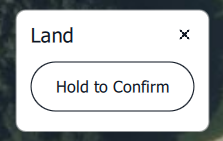
Once the Land command is confirmed, the aircraft will begin descending to the ground. Once touchdown is achieved, the aircraft will automatically detect the landing and will disarm.
If Land Does Not Occur:
AMC: EMERGENCY ACTIONS Button SELECT
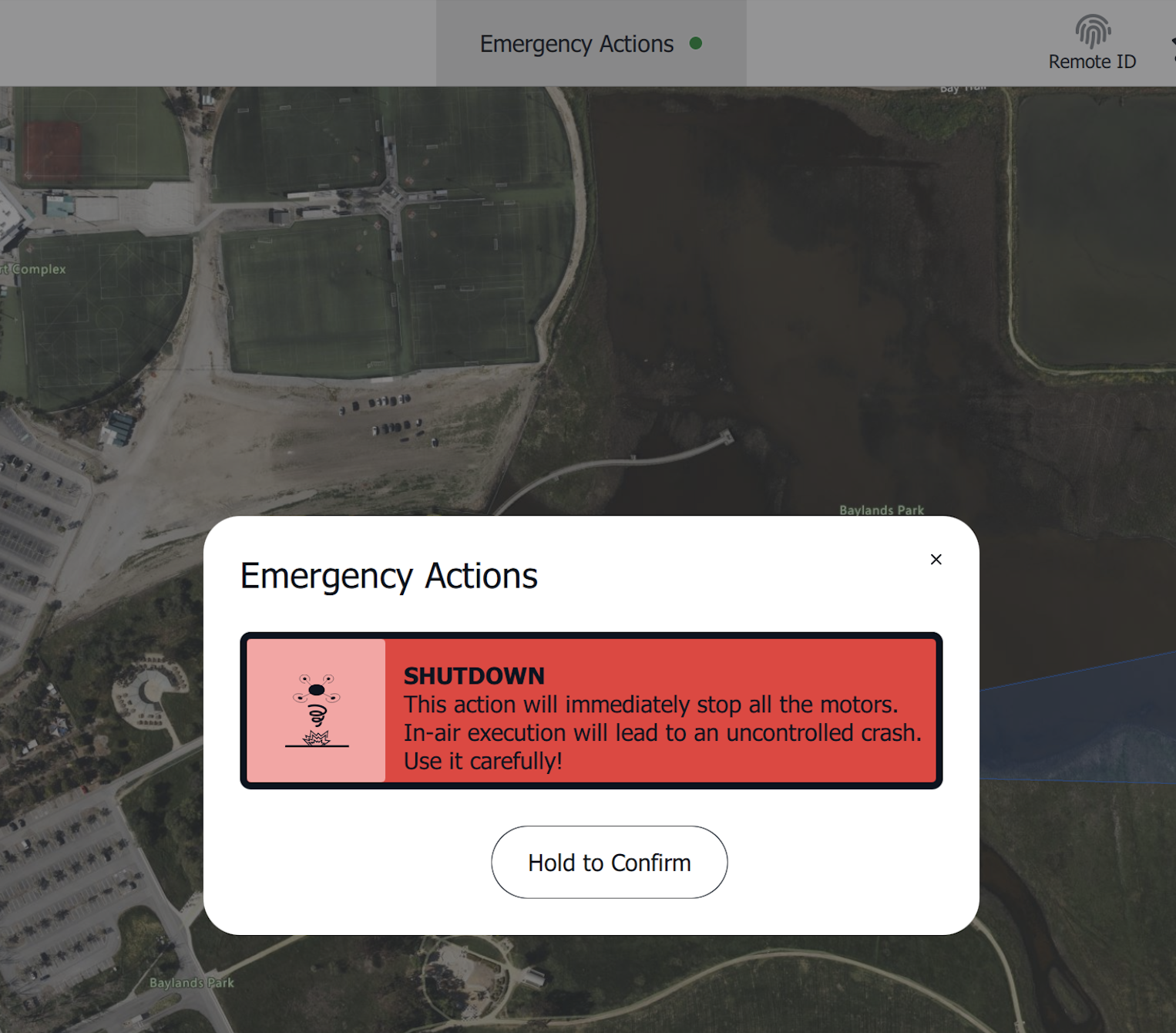
Select the “Emergency Actions” button on the top of the AMC application on the RPIC Tablet. Once pressed, a notification and confirmation popup will appear in the center of the screen.
AMC: HOLD TO CONFIRM Button SELECT & HOLD
Press and hold the “Hold to Confirm” button to execute the Emergency Shutdown on the RPIC Tablet. Once executed, the motors will immediately terminate operation (i.e. stop) and the parachute will deploy.
After deployment, the aircraft is required to be serviced in accordance with the UMM by qualified maintenance personnel.