RPIC Control Station Power Failure

INDICATIONS
Physical Loss of RPIC Control Station
RPIC Control Station is unresponsive
POSSIBLE CAUSES
Hardware failure
External power failure
FAILSAFE BEHAVIOR
If RPIC Control Station power is lost during the inbound mission phase, the aircraft continues with the planned mission (returning to home location and precision landing).
If RPIC Control Station power is lost during the outbound mission phase, the aircraft holds above the delivery location until the low energy storage device failsafe is enabled.
PROCEDURE
EMERGENCY LOSS OF RPIC CONTROL STATION POWER ANNOUNCE
The RPIC is to announce the voice comms “Loss of RPIC Control Station Power” once emergency conditions are identified using the indications information above.
Record last known location — NOTE B.A.T.H.S
The RPIC shall note the last known battery percentage, altitude, current time, heading, and speed of the aircraft. This shall help with the recovery of the aircraft.
Re-establish RPIC Control Station connectivity to aircraft
In the bottom right corner of the RPIC Tablet, select the Wifi button. Once selected, confirm that an LTE connection at the top of the popup menu shows to be active.
Verify the VPN Client has an active connection via the VPN interface.
Select the Auterion logo in the top left corner in the AMC application on the RPIC Tablet.
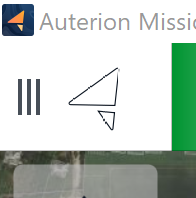
Navigate and select the Settings tab which is found at the bottom of the expanded panel.
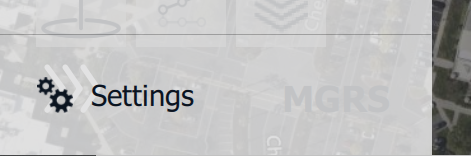
Navigate and select the Comm Links tab found in the top left of the newly expanded panel.

Navigate and select the active aircraft in use then select the “Connect” button found in the bottom of the screen.

If connection is reestablished in 45 seconds or less:
Mission — CONTINUE
No action is required if the mission was previously in progress at the time of GCS internet loss. If the last state of the mission was paused, select the “Resume” button on the Mission Console on the RPIC Control Station.

If connection cannot be reestablished in less than 45 seconds:
Active LTE on tablet VERIFY
In the bottom right corner of the RPIC Tablet, select the Wifi button. Once selected, confirm that an LTE connection at the top of the popup menu shows to be active.
Mission Console — OPEN ON RPIC TABLET
Within Google Chrome, navigate to the bookmarks page and select Uncrew on the RPIC Tablet. Once Uncrew is opened, select Mission Console and start shift at the current location. Select the active mission flying.
Uncrew: Return to Home SELECT
Select the Return to Home Button on the Uncrew Mission Console screen on the RPIC Tablet.

Once the button is selected, a popup window will appear requiring RPIC confirmation. This window will remain displayed until “CONFIRM” is selected or exit (“x”) is pressed.
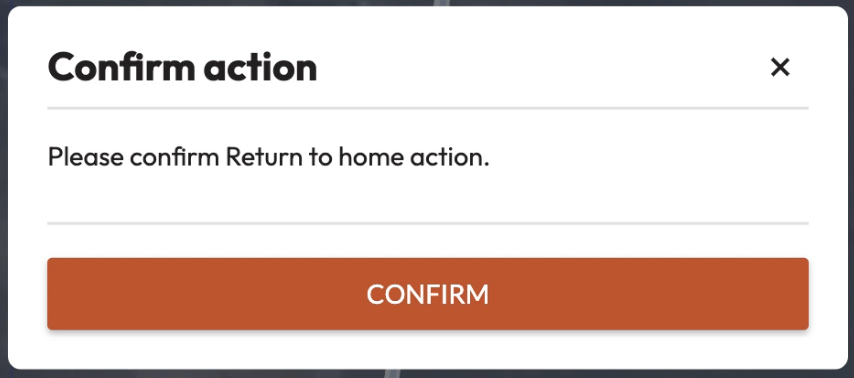
Once the command is confirmed, the aircraft stops performing the mission and begins navigating to the takeoff location. The aircraft will maintain its altitude at the defined desired altitude. Uncrew navigates the aircraft so that all NFAs and perimeters are avoided. The Aircraft Status shall be Contingency.
At the takeoff location, the aircraft will land. Precision landing mode shall be automatically attempted during the landing sequence.