0003 - Demo Script: Flight Trust Level Presentation

CONFIDENTIAL | DroneUp | April 2026
1. Purpose
Provide a complete, rehearsable demo script that walks a presenter through the ATOMx flight trust classification system in 10 minutes or less. The audience is senior government/military leadership evaluating the system’s value for counter-UAS operations.
What We Are Selling
We are selling the data feed that powers the live airspace view – a machine-verifiable, real-time classification of every aircraft in the operational picture. The UI visualizes and crystallizes this for the audience, but the product is the data.
“You no longer have to contact 50 different groups across your jurisdiction to figure out if they authorized a flight, if these things are verified, if it’s real, if there’s a flight intent, or if they’re conforming with what they said they were going to do. One system does all of that for you.”
Demo Perspective
The demo is presented from the observer/authority point of view – not the pilot’s. The audience cares about the value proposition to decision-makers who have to assess airspace trust in real time.
Constraints
- 10 minutes maximum presentation time
- All data is simulated; the audience does not need to know which scenarios are manufactured vs. live
2. User Roles
The demo is presented primarily from the observer/authority view. Pilot and jurisdictional manager actions are handled in advance by the demo prep script (see Section 3).
| Role | Screens | Purpose in Demo |
|---|---|---|
| Pilot / Operator | My Flights, Profile | Pre-configured by demo prep script before presentation begins |
| Jurisdictional Manager | Flight Review, Jurisdictions | Optional: switch to this view during Act 2 to show live approval |
| Observer / Authority | Live Map (with Demo Controls pull-out) | Primary demo surface |
3. Pre-Demo Setup
Complete these steps before the presentation begins. The audience should never see setup.
3.1 Environment
- Target environment: dev (
apollo.uncrew.dev.droneup.cloud) - Confirm Live Map loads and shows ADS-B Exchange / AirDex background traffic
- Confirm demo controls pull-out panel is functional
- Confirm full-screen map button is present and functional
- Verify navigation is suppressed to demo-safe items only — hide: Mission Console, Mission Manager, Vehicle Manager, Settings, Mission Planner
3.2 Pre-Configured Data
The opening screen should be live before the audience arrives. All simulations below are ready to trigger from the demo controls pull-out panel.
| Item | State | Notes |
|---|---|---|
| 1 unknown flight (red dot) | Running | Already moving on the map when the audience arrives. Serves as the ambient backdrop during opening remarks. No panels open, minimal UI. |
| Remote ID trigger | Ready | Activates broadcast RID for the unknown aircraft, transitioning it to orange (Declared). |
| 1 operational intent polygon | Ready to inject | Pre-configured geometry in the demo area. Injecting it auto-correlates the aircraft to yellow (Correlated). |
| 1 flight authorization (ATOMx Alpha — software identity) | Pre-authorized | Already approved. Becomes the Authorized blue dot. A second authorization is shown live during Act 2. |
| 1 flight authorization (ATOMx Bravo — hardware identity) | Pre-authorized | Already approved. Becomes the Authorized+ green dot. |
| Non-conformance trigger | Ready | Press Deviate to make the authorized aircraft leave its area on command. |
| 1 orphaned operational intent | Pre-loaded | An OI polygon with no correlated telemetry. Shown during the closing COP to illustrate the gap scenario. |
3.3 Aircraft Registration
The demo prep script pre-registers both aircraft. No manual registration required.
| Aircraft | Identity Level | TPM Status | Notes |
|---|---|---|---|
| ATOMx Alpha | Software verified | Software certificate | Used for the L4 (blue / Authorized) scenario |
| ATOMx Bravo | Hardware verified | TPM attested | Used for the L5 (green / Authorized+) scenario |
4. Demo Flow
Total target time: ~10 minutes.
Opening: COP Backdrop (~1 min)
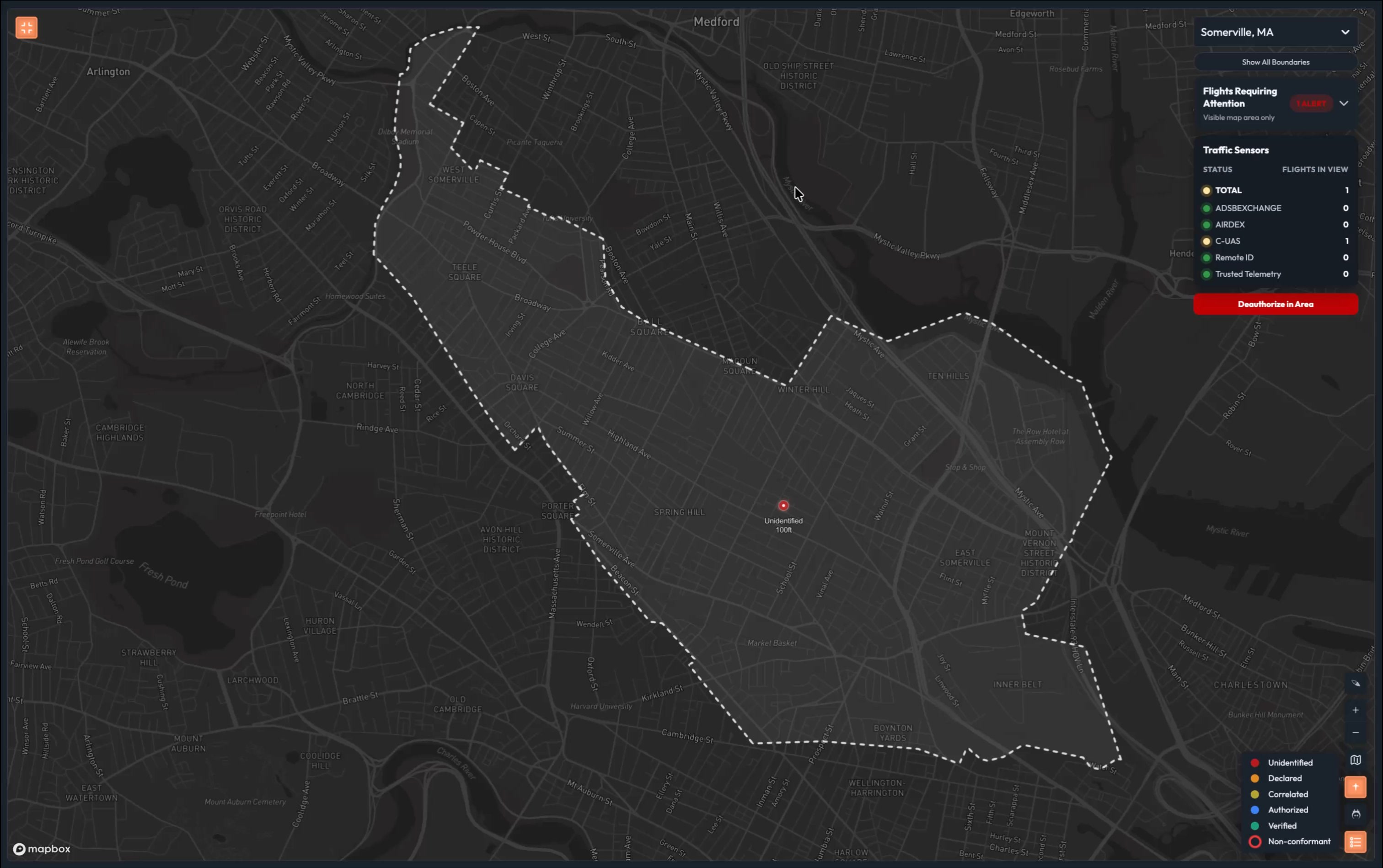
The opening screen
The Live Map is already on screen when the audience walks in – or when the presentation begins. It shows a light gray map of the demo area with aircraft dots moving across it. This is the title slide, not a feature demonstration.
Design intent:
- Minimal information – just dots on a map, ideally moving
- No legends, no panels, no labels – nothing distracting
- Serves as a visually engaging backdrop while the Presenter delivers opening remarks
- The audience should be drawn to the screen without being pulled away from what the Presenter is saying
Talk track (Presenter): [Opening remarks about the airspace problem, counter-UAS challenges, and the question of trust. The map plays behind them. They don’t reference specific UI elements yet.]
Act 1: Trust Levels (~5 min)
Walk through each trust level using a different aircraft for each scene. The legend is always fully visible — all five trust states shown throughout.
Layer 1 — Counter-UAS Feed Only (Unidentified)
The unknown flight (red dot) is already running on the map from the opening backdrop.
Talk track: “This is your starting point. A counter-UAS sensor detected something. That’s all we know. No identity. No intent. No authorization. Just a signal.”
Click the red dot. Show the detail panel: all fields are unknown or N/A.
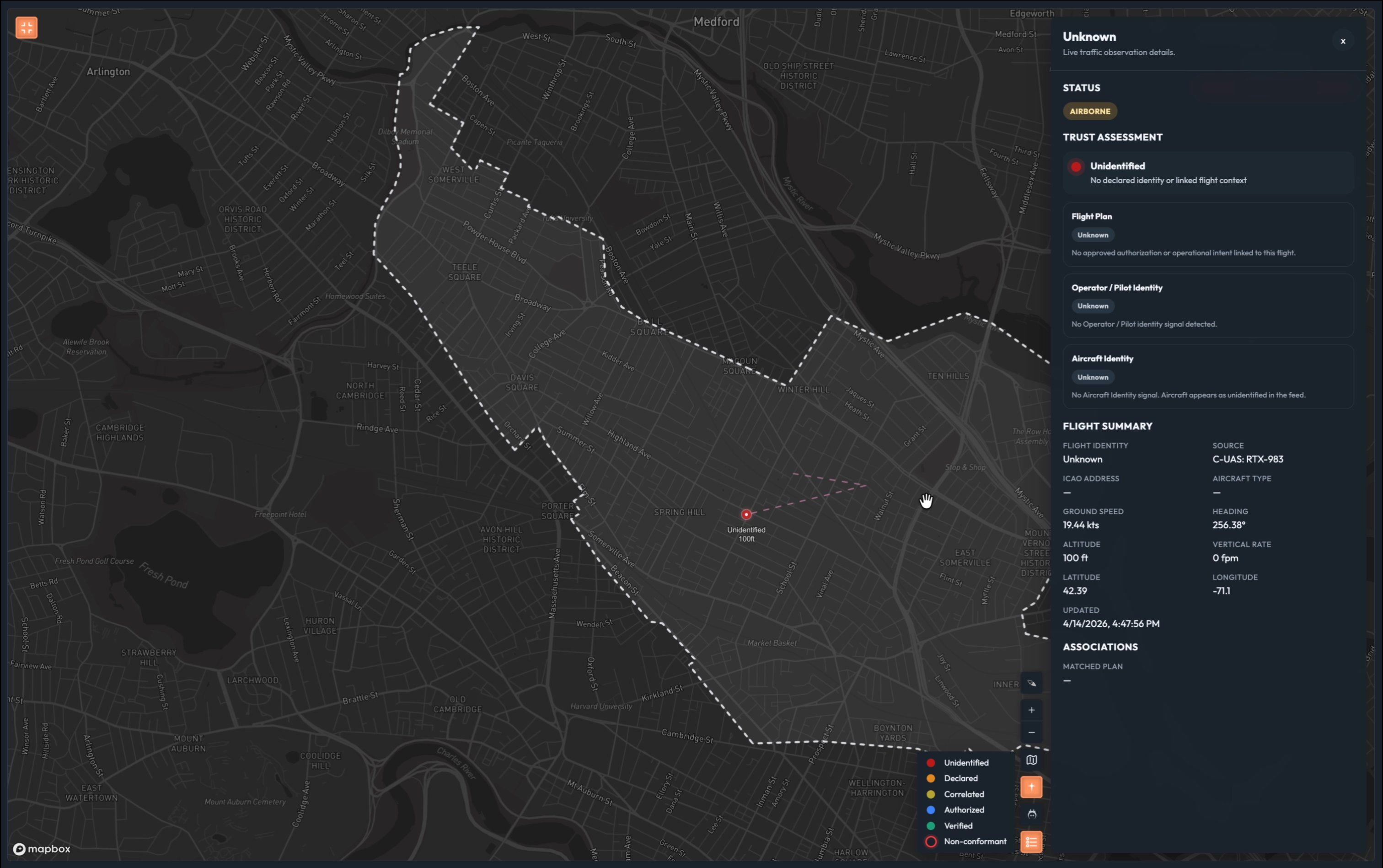
Talk track: “Unknown plan. Unknown pilot. Detected aircraft. This should be familiar territory to you. Before ATOMx, you had to decipher whether this was unknown because you were missing context or unknown because it’s a negligent or bad actor.”
Talk track: “ATOMx uses a range of data layers to establish trust. This equips you to act decisively. Let’s look at those now.”
Layer 2 — Remote ID Added (Declared)
Press Fly Declared in demo controls. Close demo controls. The dot transitions from red to orange.
Talk track: “You can see a Remote ID signal has been detected. We have a declared aircraft identity and a declared pilot, although we should note that Operator ID is an optional field in the RID standard, and the FAA does not require it – which further degrades your ability to protect our sovereignty.”
Click the orange dot. Show: pilot identity = declared (name/ID from Remote ID broadcast), UA identity = declared (Remote ID serial), flight intent = absent.
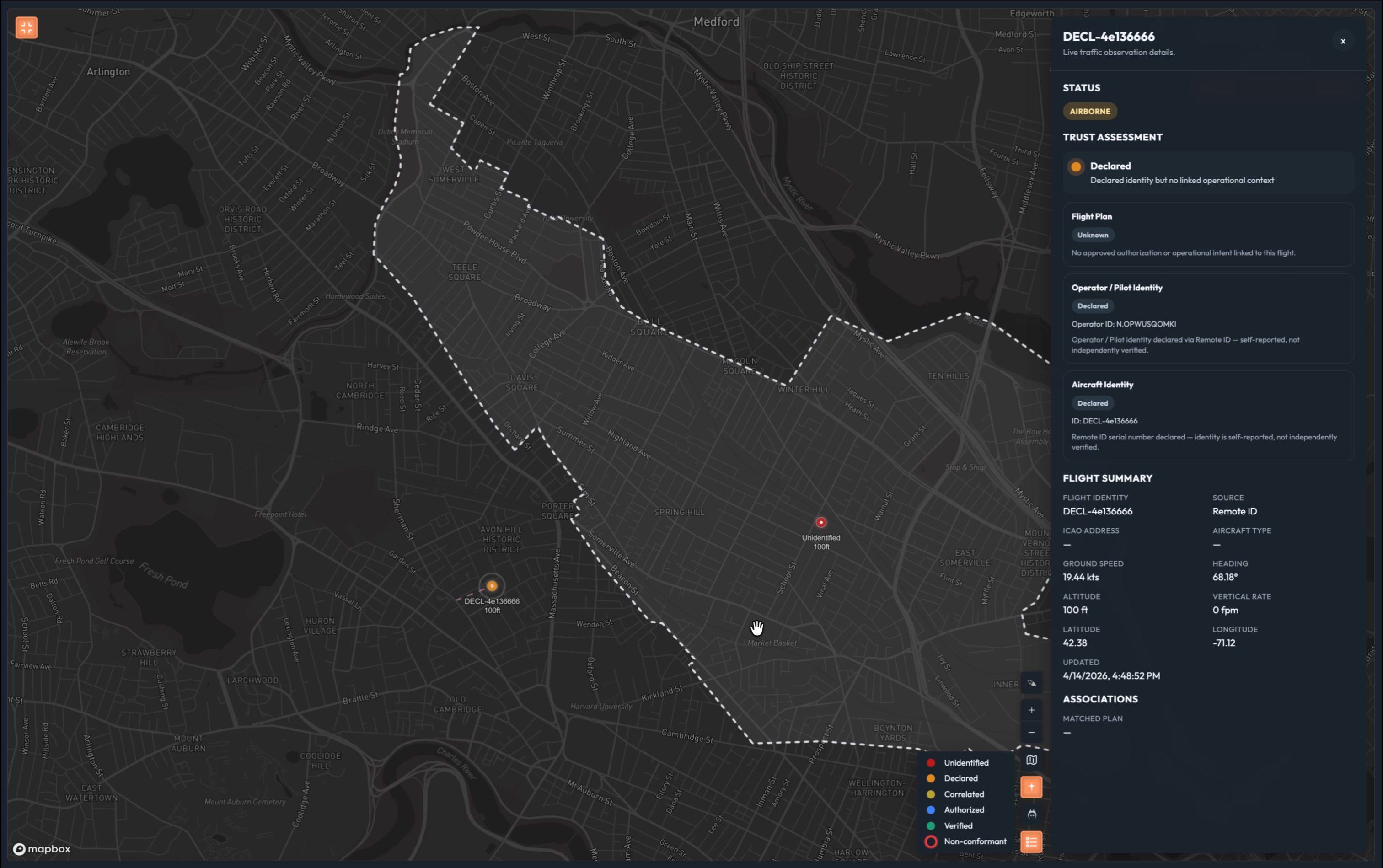
Talk track: “Again, this is self-reported. We have a pilot and a drone on record, but neither is hardware nor software-verified. There’s no information that allows you to establish trust. It is just declared. This is where today’s fragmented, low-altitude, unmanned airspace management systems usually stop: declared information and maybe loose correlation, but not machine-verifiable trust at machine speed.”
Stop all simulations. Close demo controls.
Layer 3 — Operational Intent Added (Declared → Correlated)
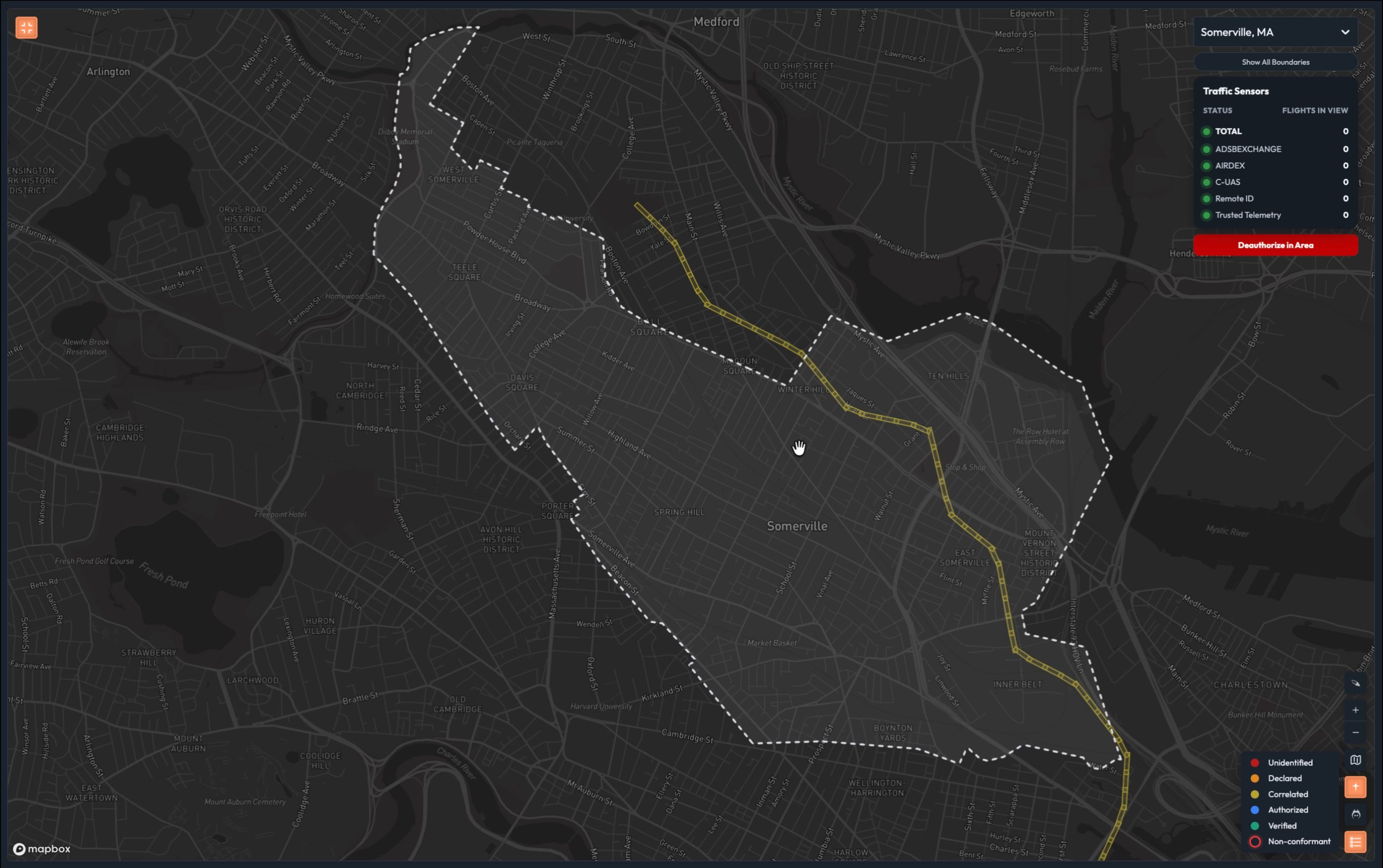
Press Insert InterUSS Flights (×3). Close demo controls. Yellow polygons appear on the map representing the operational intent areas.
Talk track: “Now we have an operational intent – someone filed a plan to fly in this area through a Unmanned Traffic Management provider. The yellow polygons represent their flight plan. This is only the start of establishing trust. The existing UTM implementation does not provide telemetry or authorization. That’s why we call this trust level correlated. We’ve taken disparate data feeds – counter UAS, RID, UTM – and brought them together. It’s a helpful layer to add context, but we have to go a few steps further.”
Talk track: “To do this type of correlation today, you’d pick up the phone and call someone or manually query something like the FAA’s DiSCVR tool. By the time you have the information you need, it’s too late. We do it in milliseconds.”
Layer 4 — Software Identity / Full Authorization (Authorized)
Press Fly Software-Verified Sim. A blue dot appears on the map.
Talk track: “See this blue dot? This flight came through our authorization system. Authorization is foundational to airspace sovereignty. The pilot verified their identity through something like login.gov. The aircraft has a software identity certificate. This certificate is a credential that can be automatically validated by ATOMx, which gives more confidence than self-declared identity alone, even if it is not yet the same assurance level as hardware-bound identity. In addition, we now know that every jurisdiction whose airspace this flight touches approved it. We didn’t just correlate this – we know and trust who this is.”
Click the blue dot. Show all three axes: pilot = Verified (login.gov or equivalent), UA = Software Verified (software certificate), flight = Authorized.
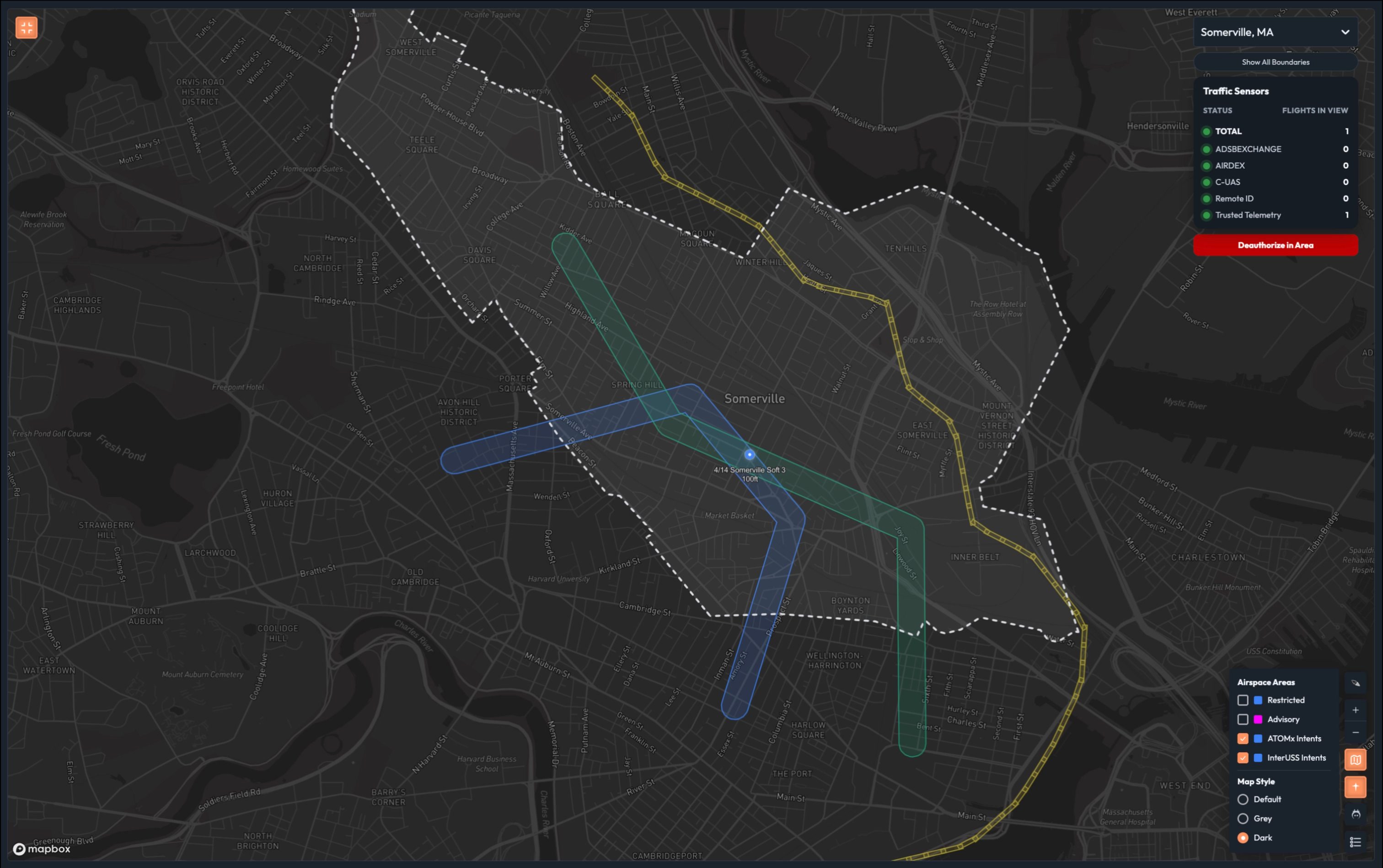
Talk track: “Authorized flight. Verified pilot. Software-verified aircraft. Every piece of that is machine-verifiable. No guessing. No phone calls. Same inputs, same answer, every time.”
Layer 5 — Hardware Identity (Authorized+)
Press Fly TPM Sim. A green dot appears on the map.
Talk track: “And this, this green dot – this is the future. This aircraft has a hardware-backed identity – a trusted platform module, physically bound to the airframe. You can’t spoof it. You can’t clone it. This is non-repudiation. You know with certainty that the aircraft transmitting this signal is the aircraft that was authorized.”
Click the green dot. Show UA = hardware (TPM attested).
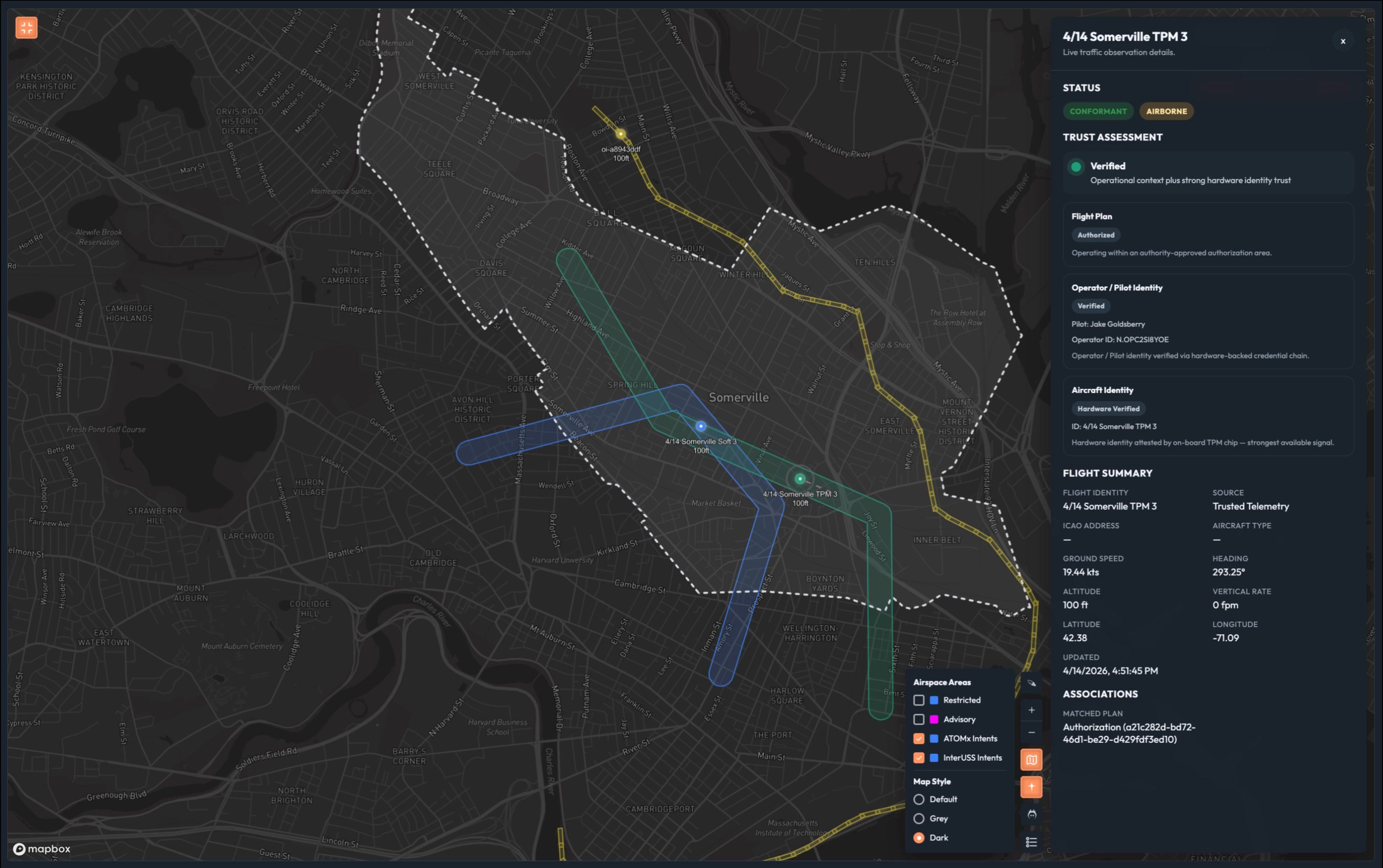
Talk track: “Imagine every remote ID module manufacturer building to this standard. That’s the future we’re building toward.”
Non-Conformance Scene
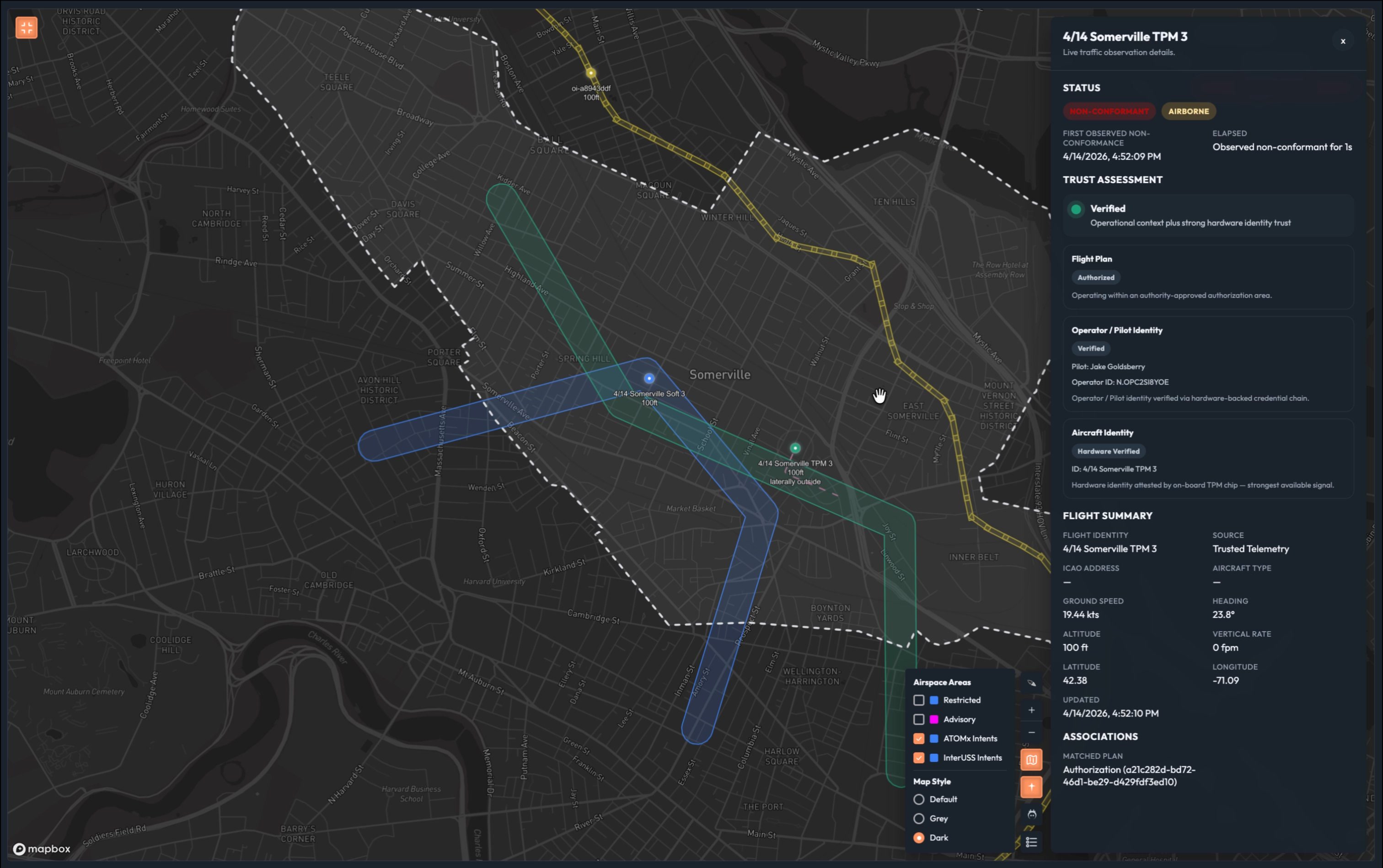
Trigger a non-conformant flight from demo controls. The blue (or green) aircraft deviates from its authorized area. Its dot gains a non-conformance indicator (pulsing border, exclamation mark, or similar).
Talk track: “Watch this. This aircraft was fully authorized – and it just left its approved area. ATOMx caught it immediately.”
Talk track: “But notice: the aircraft maintains its trust level. A known, authorized aircraft that deviated is a very different situation than an unknown aircraft that should have never been there. ATOMx tells you which is which – instantly. This creates the basis for notification, coordinated response, and containment workflows.”
Click the dot. Show: conformance = non-conformant, all other identity fields unchanged.
Act 2: The Authority’s Role (~2 min)
The authorization panel
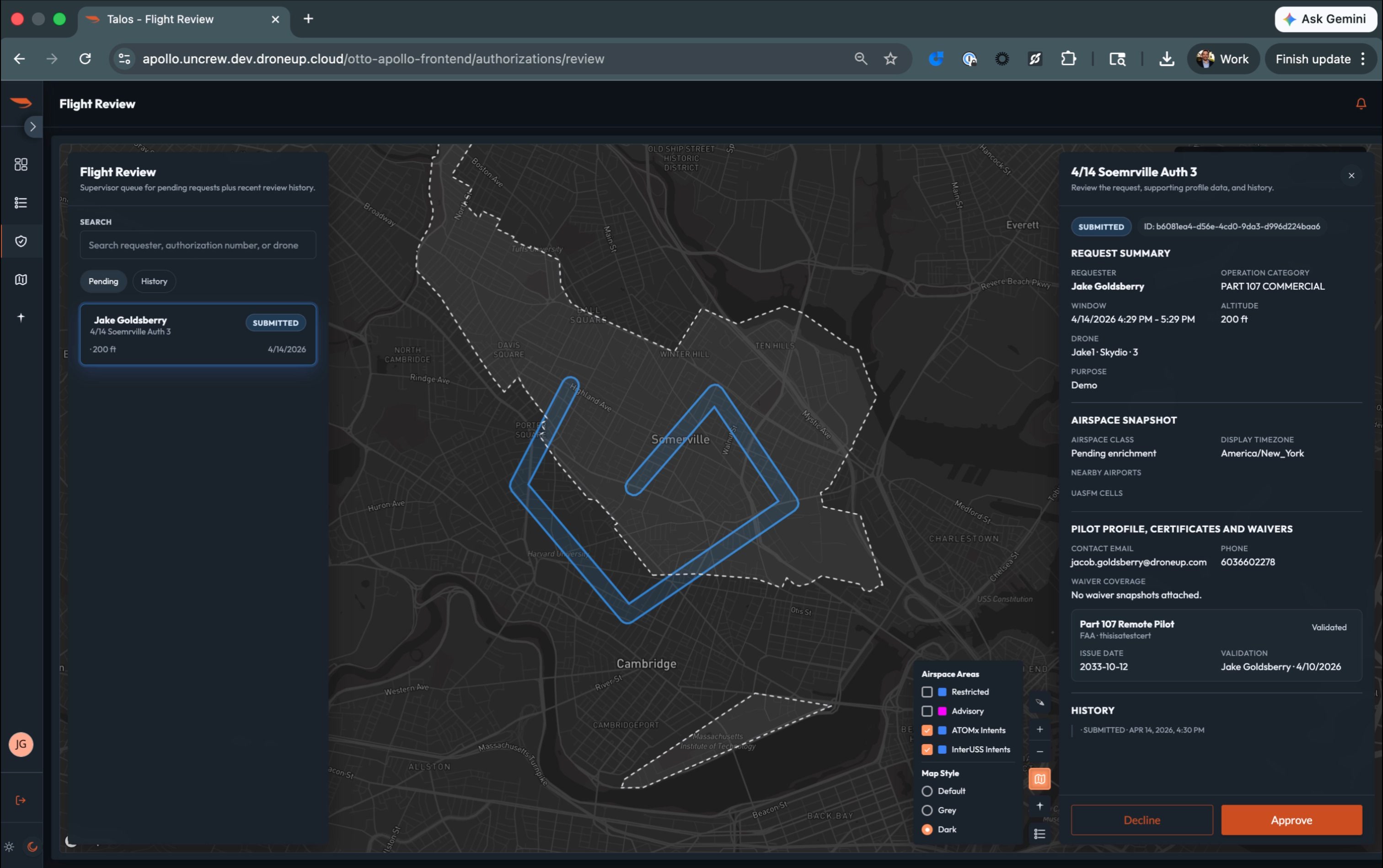
Switch to the jurisdictional manager browser. Open the Flight Review / Authorizations tab.
Talk track: “Now let’s step back. Everything we just saw on the map – the blue dot, the green dot – those came from somewhere. This is where the authority works.”
Show the list of pending flight requests. Point out:
- Each request includes the pilot, the aircraft, the requested area, and the time window
- Authorize vs. deny controls are the primary action
Talk track: “The authority reviews each request. They can see the flight path overlaid on their jurisdiction. If the flight spans multiple jurisdictions, each authority approves independently. Approve one flight to show the closed loop.”
Approve a flight. The pilot receives a notification showing the flight name and authorization ID.
Talk track: “The pilot gets notified immediately. The system records the authorization with a unique ID. And from this point forward, that flight is blue on the map.”
Identity verification tasks (brief)
Point out (but do not deeply demo) that the authority panel also surfaces identity tasks – operator ID lookup, aircraft verification.
Talk track: “The authority can also be asked to manually verify an operator’s identity. If they’ve authenticated through login.gov or a trusted provider, the system marks them as Verified automatically. If the authority needs to vouch for them manually, there’s a verification step here. That verification is what elevates the pilot’s trust level from self-declared to verified. And because our system supports jurisdiction-to-jurisdiction data sharing, that verification carries across connected agencies.”
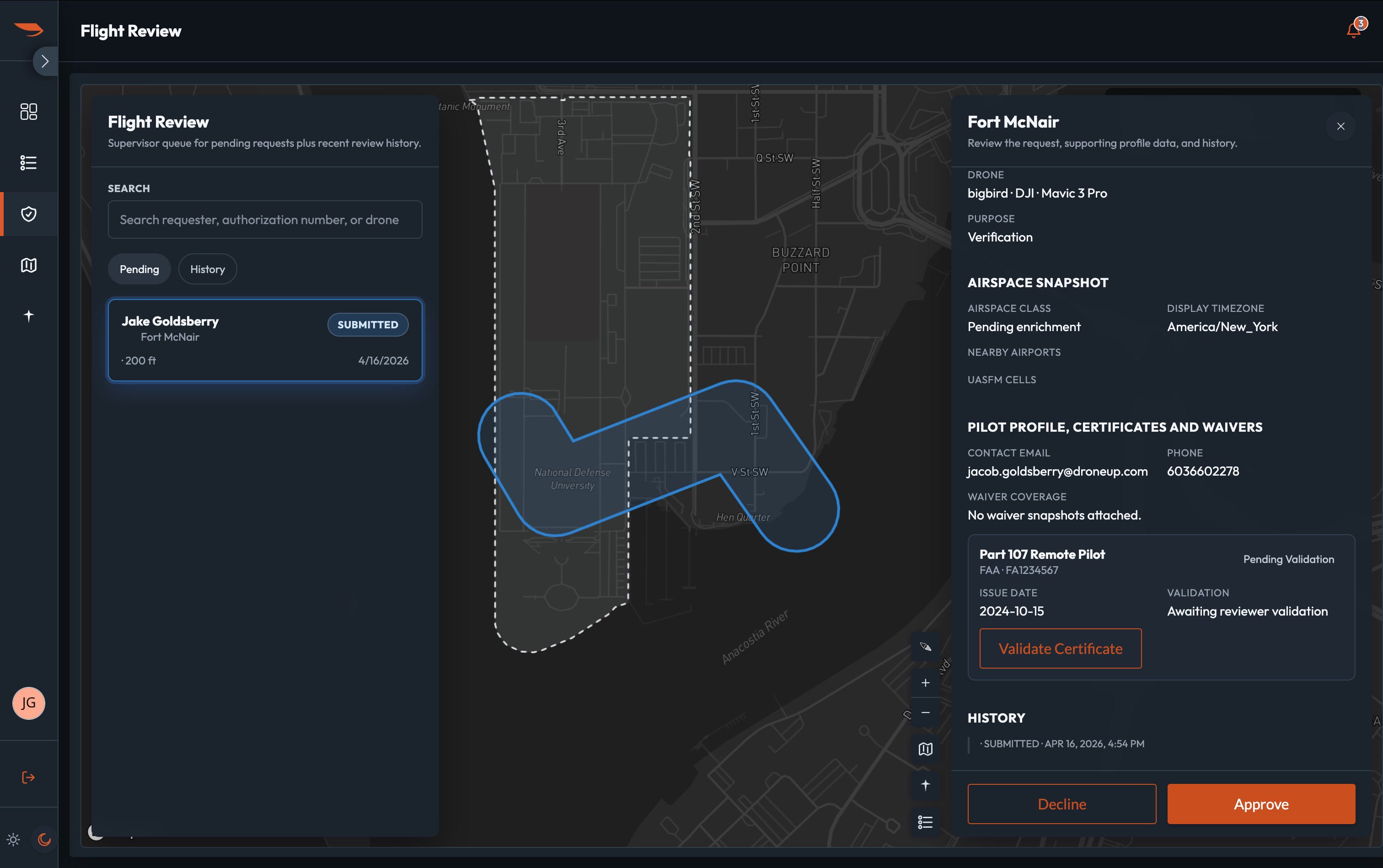
Keep this brief. This is foreshadowing capability, not the core demo beat.
Closing: Full Common Operating Picture (~1 min)
Zoom out
Switch back to the observer browser. Zoom the Live Map out to show the full demo area. Multiple aircraft are now visible – multiple colors, multiple trust levels. Some have operational intent polygons. Some are orphaned intents with no correlated telemetry (an OI polygon sitting on the map with no aircraft inside it).
Talk track: “This is what we’re delivering. One screen. Real time. Every aircraft in your airspace, classified at machine speed.”
Walk the legend one final time:
- Red — Unknown. Counter UAS sensor detection only.
- Orange — Declared. Operator self-reports with no verification.
- Yellow — Correlated. Intent filed, association made.
- Blue — Authorized. Verified pilot, software-verified aircraft, approved by every jurisdiction in the flight path.
- Green — Authorized+. Hardware-backed identity. The gold standard.
- Non-conformant overlay — Any of the above, deviating from declared intent.
Point to the orphaned OI polygon: “And that polygon with no aircraft inside it? Someone filed a plan to fly here and either hasn’t launched yet, or we have no sensor coverage of it. The system shows you the gap.”
Optional: Click “Populate Area” in demo controls. This spawns a full picture of predominantly L4 and L5 flights across the demo region – one or two unknowns mixed in. Use this to show scale before delivering the closing line.
Pause. Let it sink in.
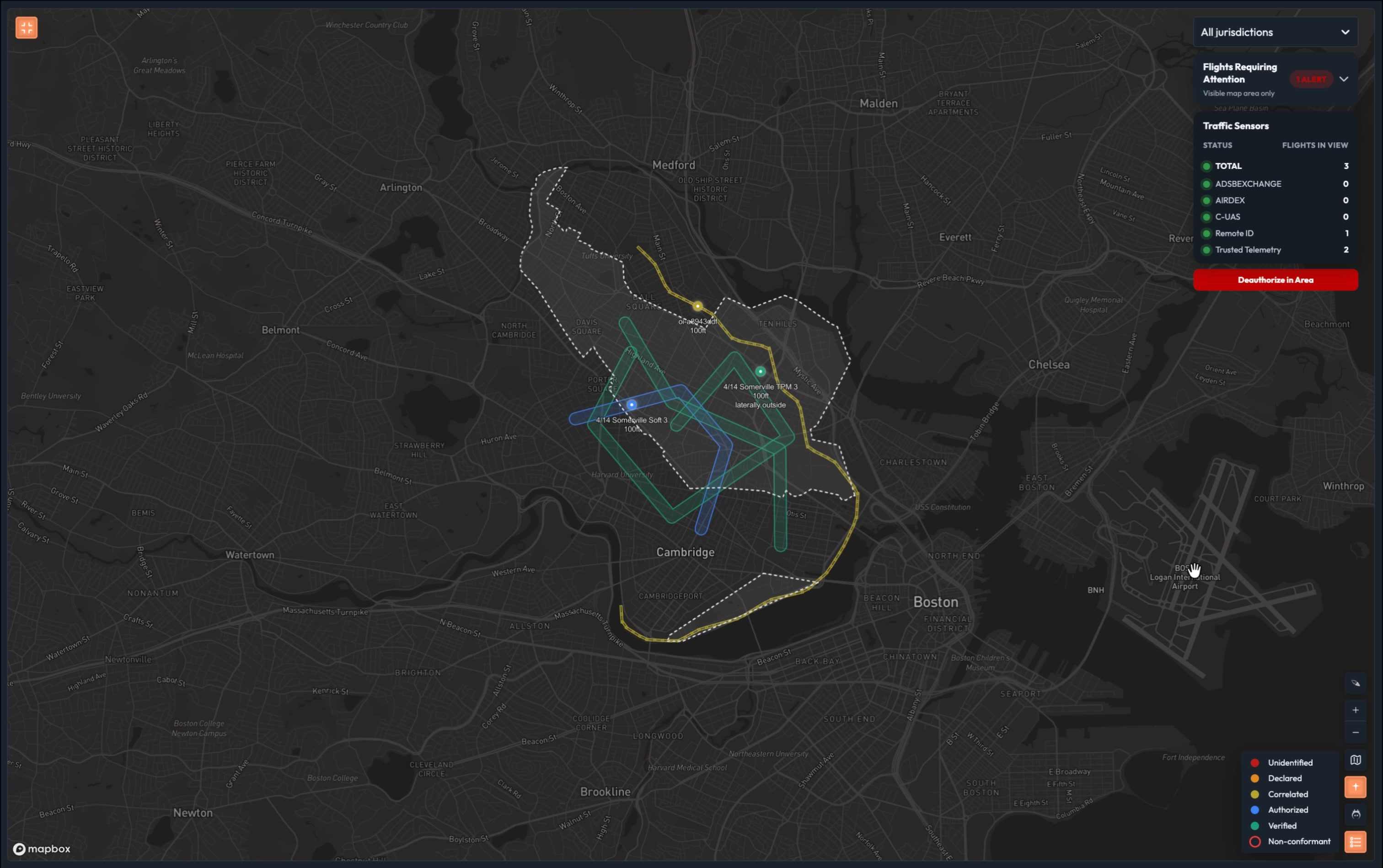
Talk track: “You no longer have to contact 50 different groups across your jurisdiction to figure out if they authorized a flight, if the aircraft is verified, if there’s a flight intent, or if they’re conforming with what they said they were going to do. One system. One view. Machine speed.”
5. Demo Controls
The demo controls are a pull-out panel on the Live Map – not a separate screen. The presenter never leaves the Live Map during the main act.
5.1 Controls Required
All controls are accessible from the Demo Controls pull-out panel on the Live Map. Correlation from OI injection to yellow dot is automatic — there is no separate correlation button.
5.2 Design Constraints
- Panel slides out from the left side of the Live Map
- Labeled clearly as “Demo Controls” so it’s obvious this is not part of the product
- Controls are simple buttons — no forms, no dropdowns, no status badges on insertable intents
- Insertable operational intents do not show a bearing (intents define a volume, not a heading)
- Legend always shows all five trust levels — it is not dynamic/viewport-dependent
- Operational intent polygon color matches the correlated aircraft’s trust level (not always red)
- Non-conformance only applies at L3 and above (correlated, authorized, authorized+) — aircraft without an operational intent cannot be non-conformant
- Demo area is Fort McNair (near National Mall / White House, Washington D.C.). Do not use Reagan National Airport (DCA) area — operational intents in that corridor are inappropriate given the accident history.
- Simulations generate telemetry streams through the normal backend pipeline (not mocked)
6. Talk Track Tips
What to Emphasize
- Speed: “Minutes to milliseconds” is the headline
- Determinism: “Same inputs, same output, every time. No guessing.”
- Binding: “Flight authorization binds pilot, aircraft, and intent into one verifiable package”
- The gap: “UTM gives you an intent but no way to tie it to an aircraft”
- Non-repudiation: “Hardware identity means you can’t spoof it”
- One system: “One view across your entire jurisdiction”
What to Avoid
- Don’t explain the three-axis model in technical detail – just show the colors and click for details
- Don’t mention UTM architecture flaws unless the audience asks (it can derail the 10 minutes)
- Don’t dwell on aircraft registration / TPM – reference it briefly: “there was a registration process”
- Don’t apologize for simulated data – everything is simulated, the audience doesn’t need to know
Handling Questions
| Question | Suggested Response |
|---|---|
| “How do you verify the aircraft?” | “We support software certificates and hardware TPM attestation. Happy to deep-dive after, but the key point is the outcome you see here.” |
| “Does this integrate with LAANC?” | “We consume data from DiSCVR which includes LAANC and DroneZone. That’s how we get from red to orange. But the real value starts at blue – full authorization.” |
| “What about UTM?” | “Great question. UTM gives you operational intents, but there’s no reliable way to bind an intent to a specific aircraft. That’s exactly the gap we fill with flight authorization.” |
| “Can this feed into Maven/Lattice?” | “Absolutely. We’re selling the data feed. This UI is just a visualization. The classification data is available via API for any downstream system.” |
| “What if the aircraft isn’t broadcasting anything?” | “Red dot. Unknown. That’s your starting point today, and it’s still your worst case with our system. The difference is everything else around it is classified, so the red dots stand out.” |
7. Current State vs. ATOMx
This comparison table supports the talk track. Can be used as a leave-behind or a pre-brief slide.
| Capability | Current State (Manual) | ATOMx |
|---|---|---|
| Drone ID to pilot ID resolution | Minutes (FAA DiSCVR lookup) | Milliseconds (automated correlation) |
| Trust level assessment | Human judgment, no standard framework | Deterministic, rule-based, five defined levels |
| Classification consistency | Varies by operator, shift, workload | Identical output for identical inputs, every time |
| Multi-jurisdiction authorization | Phone calls, emails, days | Real-time multi-authority approval workflow |
| Non-conformance detection | Visual observation or post-incident review | Real-time automated geofence monitoring |
| Identity assurance | Self-declared only (Remote ID) | Software certificate + hardware PKI verification |
| Field personnel awareness | Radio dispatch, no direct data access | Real-time COP with classification data |
| Downstream integration | Manual reports, verbal summaries | Machine-verifiable state available via API |
8. Consolidated Talk Track
Read top to bottom. Everything in italics is spoken aloud. Supporting actions are in plain text.
Opening (~1 min)
“This is your airspace right now. Every dot is an aircraft signal. The question we’re here to answer today is: which of these can you trust?”
“Let’s build that answer from the ground up.”
Layer 1 — Unknown (~1 min)
Open demo controls. Press Fly. A red dot appears and moves.
“This is your starting point. A counter-UAS sensor detected something. That’s all we know. No identity. No intent. No authorization. Just a signal.”
Click the red dot.
“Unknown plan. Unknown pilot. Detected aircraft. This should be familiar territory to you. Before ATOMx, you had to decipher whether this was unknown because you were missing context or unknown because it’s a negligent or bad actor.”
“ATOMx uses a range of data layers to establish trust. This equips you to act decisively. Let’s look at those now.”
Layer 2 — Declared (~1 min)
Press Fly Declared. Close demo controls.
“You can see a Remote ID signal has been detected. We have a declared aircraft identity and a declared pilot, although we should note that Operator ID is an optional field in the RID standard, and the FAA does not require it – which further degrades your ability to protect our sovereignty.”
Click the orange dot.
“Again, this is self-reported. We have a pilot and a drone on record, but neither is hardware nor software-verified. There’s no information that allows you to establish trust. It is just declared. This is where today’s fragmented, low-altitude, unmanned airspace management systems usually stop: declared information and maybe loose correlation, but not machine-verifiable trust at machine speed.”
Stop all simulations. Close demo controls.
Layer 3 — Correlated (~1 min)
Press Insert InterUSS Flights (×3). Close demo controls.
“Now we have an operational intent – someone filed a plan to fly in this area through a Unmanned Traffic Management provider. The yellow polygons represent their flight plan. This is only the start of establishing trust. The existing UTM implementation does not provide telemetry or authorization. That’s why we call this trust level correlated. We’ve taken disparate data feeds – counter UAS, RID, UTM – and brought them together. It’s a helpful layer to add context, but we have to go a few steps further.”
“To do this type of correlation today, you’d pick up the phone and call someone or manually query something like the FAA’s DiSCVR tool. By the time you have the information you need, it’s too late. We do it in milliseconds.”
Layer 4 — Authorized (~1 min)
Press Fly Software-Verified Sim.
“See this blue dot? This flight came through our authorization system. Authorization is foundational to airspace sovereignty. The pilot verified their identity through something like login.gov. The aircraft has a software identity certificate. This certificate is a credential that can be automatically validated by ATOMx, which gives more confidence than self-declared identity alone, even if it is not yet the same assurance level as hardware-bound identity. In addition, we now know that every jurisdiction whose airspace this flight touches approved it. We didn’t just correlate this – we know and trust who this is.”
Click the blue dot.
“Authorized flight. Verified pilot. Software-verified aircraft. Every piece of that is machine-verifiable. No guessing. No phone calls. Same inputs, same answer, every time.”
Layer 5 — Authorized+ (~30 sec)
Press Fly TPM Sim.
“And this is where it goes next. This aircraft has a hardware-backed identity – a trusted platform module, physically bound to the airframe. You can’t spoof it. You can’t clone it. This is non-repudiation. You know with certainty that the aircraft transmitting this signal is the aircraft that was authorized.”
Click the green dot.
“Imagine every remote ID module manufacturer building to this standard. That’s the future we’re building toward.”
Non-Conformance Scene (~1 min)
Press Deviate.
“Watch this. This aircraft was fully authorized – and it just left its approved area. ATOMx caught it immediately.”
“But notice: the aircraft maintains its trust level. A known, authorized aircraft that deviated is a very different situation than an unknown aircraft that should have never been there. ATOMx tells you which is which – instantly. This creates the basis for notification, coordinated response, and containment workflows.”
Act 2 — The Authority’s Role (~2 min)
Switch to the jurisdictional manager session. Open Flight Review.
“Everything we just saw on the map came from somewhere. This is where the authority works.”
Point out the pending requests list.
“Each request shows the pilot, the aircraft, the area, and the time window. If the flight spans multiple jurisdictions, each authority approves independently.”
Approve a flight. Notification appears on the observer screen.
“The pilot is notified. The system records the authorization. And from this point forward, that flight is blue on the map.”
Briefly point to the operator verification button (do not demo in depth).
“The authority can also manually verify an operator’s identity – if they’ve authenticated through a trusted provider like login.gov, it’s automatic. Otherwise the authority vouches for them directly. That signature is what moves the pilot from self-declared to verified.”
Closing — Full COP (~1 min)
Switch back to observer. Press Populate Area (optional). Zoom out.
Walk the legend:
“Red – unknown. Counter UAS sensor detection only.” “Orange – declared. Operator self-reports with no verification.” “Yellow – correlated. Intent filed, association made.” “Blue – authorized. Verified pilot, software-verified aircraft, approved by every jurisdiction in the flight path.” “Green – authorized plus. Hardware-backed identity. The gold standard.”
Point to the orphaned OI polygon.
“And that polygon with no aircraft inside it? Someone filed a plan to fly here and either hasn’t launched yet, or we have no sensor coverage. The system shows you the gap.”
Pause.
“You no longer have to contact 50 different groups across your jurisdiction to figure out if they authorized a flight, if the aircraft is verified, if there’s a flight intent, or if they’re conforming with what they said they were going to do. One system. One view. Machine speed.”